 Posted by
 Roblox Mesh ID List is typically needed by creators to access 3D resources used in Roblox Studio tools. While meshes are essential for creating objects in Roblox, asset availability can change over time. Some IDs may no longer be accessible because the related asset has been removed, changed, or restricted.
We’ll cover what Roblox Mesh IDs mean, how to find them, a list of popular IDs, how to use them, and common problems you may encounter.
Roblox Mesh ID List
Each Mesh ID serves a different purpose, primarily related to the 3D geometry of an object in Roblox. You should know that there are different types of IDs. Some IDs represent the 3D geometry of an item (Mesh IDs), while others represent the visual surface of an object (Texture IDs).
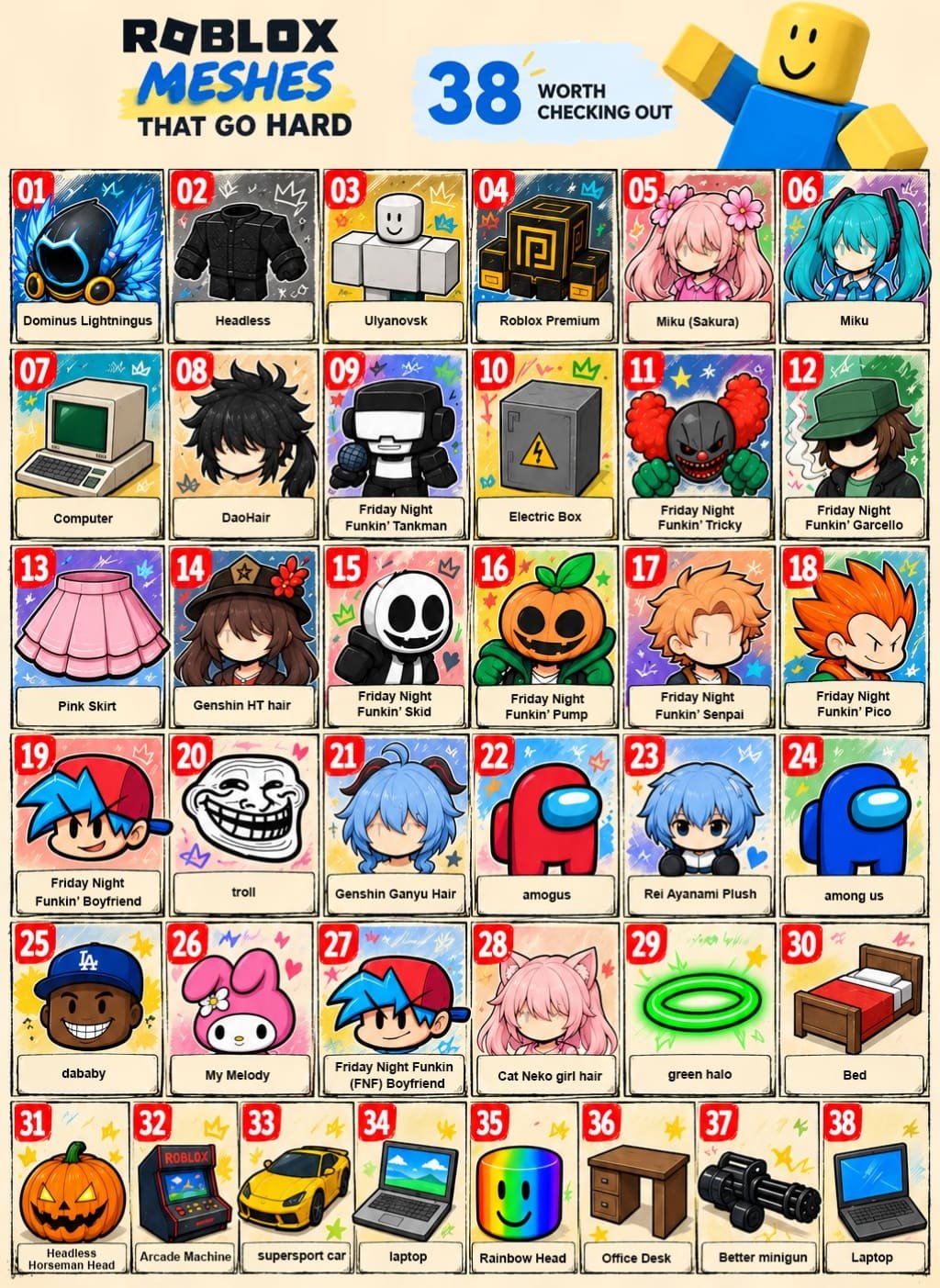
Here is a list of popular Roblox Mesh IDs. Keep in mind that asset availability can change over time, so some IDs may no longer be accessible.
Swipe left to see more →
| Item Name | Mesh ID | Texture ID | Creator |
|---|---|---|---|
| Dominus Lightningus | 10863554868 | 10863555036 | YoungSpeaqer |
| Headless | 10300192375 | 10300192483 | Hipal1234567890 |
| Ulyanovsk | 7968388730 | – | alekisokk |
| Roblox Premium | 7929675738 | – | mothmage |
| Miku (Sakura) | 7749017028 | 7749017093 | bubblegal112 |
| Miku | 7749007933 | 7749008046 | bubblegal112 |
| Computer | 7337360740 | 7337360793 | Carcat62 |
| DaoHair | 7321039380 | 7321039541 | THEDAO77 |
| Friday Night Funkin’ Tankman | 7261981912 | 7261982198 | mikunanonano |
| Electric Box | 7111853969 | 7111855878 | Yosgerwy |
| Friday Night Funkin’ Tricky | 7034826583 | 7034826767 | mikunanonano |
| Friday Night Funkin’ Garcello | 7034790797 | 7034790939 | mikunanonano |
| Pink Skirt | 6970465326 | 6970465363 | Panda_EspacialYT |
| Genshin HT hair | 6963867187 | – | AGE927 |
| Friday Night Funkin’ Skid | 6955216329 | 6955216776 | mikunanonano |
| Friday Night Funkin’ Pump | 6955200352 | 6955200593 | mikunanonano |
| Friday Night Funkin’ Senpai | 6955119513 | 6955119752 | mikunanonano |
| Friday Night Funkin’ Pico | 6955053608 | 6955053999 | mikunanonano |
| Friday Night Funkin’ Boyfriend | 6947300162 | 6947300537 | mikunanonano |
| troll | 6900071612 | 6900071652 | noxrim |
| Genshin Ganyu Hair | 6823055766 | 6823056190 | AGE927 |
| amogus | 6779025456 | 6779025490 | rickasts |
| Rei Ayanami Plush | 6774609624 | 6774609711 | rickasts |
| among us | 6686375902 | 6686375937 | rickasts |
| dababy | 6620613568 | 6620614695 | rickasts |
| My Melody | 6536868091 | 6536868155 | bubblegal112 |
| Friday Night Funkin (FNF) Boyfriend | 6533498609 | 6533498648 | andy2713 |
| Cat Neko girl hair | 6504250256 | – | luhvslot |
| green halo | 6462228984 | 6462229062 | memequestlol1543 |
| Bed | 6449096485 | – | PenMedia |
| Headless Horseman Head | 6444998927 | – | VeniVidiTerritus |
| Arcade Machine | 6365045030 | 6365045887 | tecnologia710mar |
| supersport car | 6317263167 | 6317264040 | fajnygosciu1234 |
| laptop | 6284679957 | 6284680076 | Bosscat3178 |
| Rainbow Head | 6241458355 | 6241458390 | Chaosjoke4 |
| Office Desk | 6204078624 | 6204079269 | turohabaneero |
| Better minigun | 5922725392 | 5922725433 | GovernorRed |
| Laptop | 5724837707 | 5724837866 | vicvic800 |
What Is a Roblox Mesh ID?
3D object data in Roblox can include meshes, textures, and other asset types. A Mesh ID is used to reference a mesh asset in Roblox Studio. Therefore, a Roblox Mesh ID List is mainly useful for creators and developers working with 3D content.
A mesh defines the 3D geometry of an object in Roblox. A Mesh ID is the identifier used to reference that mesh asset.
A Mesh ID references a mesh asset in Roblox. However, an asset may become unavailable or have access restrictions, so an ID that worked previously may not always remain usable. A Mesh serves a different function than a Texture; a Mesh determines the object’s 3D shape, while a Texture affects the surface appearance. Roblox explains its asset ID system in the official Assets documentation.
Both the mesh and texture can be used together to create the appearance of a 3D object. They are also associated with a MeshPart, which is a form of BasePart that includes a custom mesh. For the current property reference, see the Roblox MeshPart documentation.
So, what is a MeshPart? It’s a type of BasePart in Roblox Studio that includes a custom 3D mesh. Its mesh and texture are determined by properties such as MeshId and TextureID.
Roblox Studio is a tool for developers who want to create experiences on Roblox. It offers many features, including tools for working with MeshParts and other assets. It’s important to stay updated on Roblox’s asset and property changes, as they can change over time.
How to Find a Mesh ID in Roblox
A Mesh ID is associated with the mesh used by a MeshPart. In Roblox Studio, you can inspect the MeshPart properties to find the mesh reference.
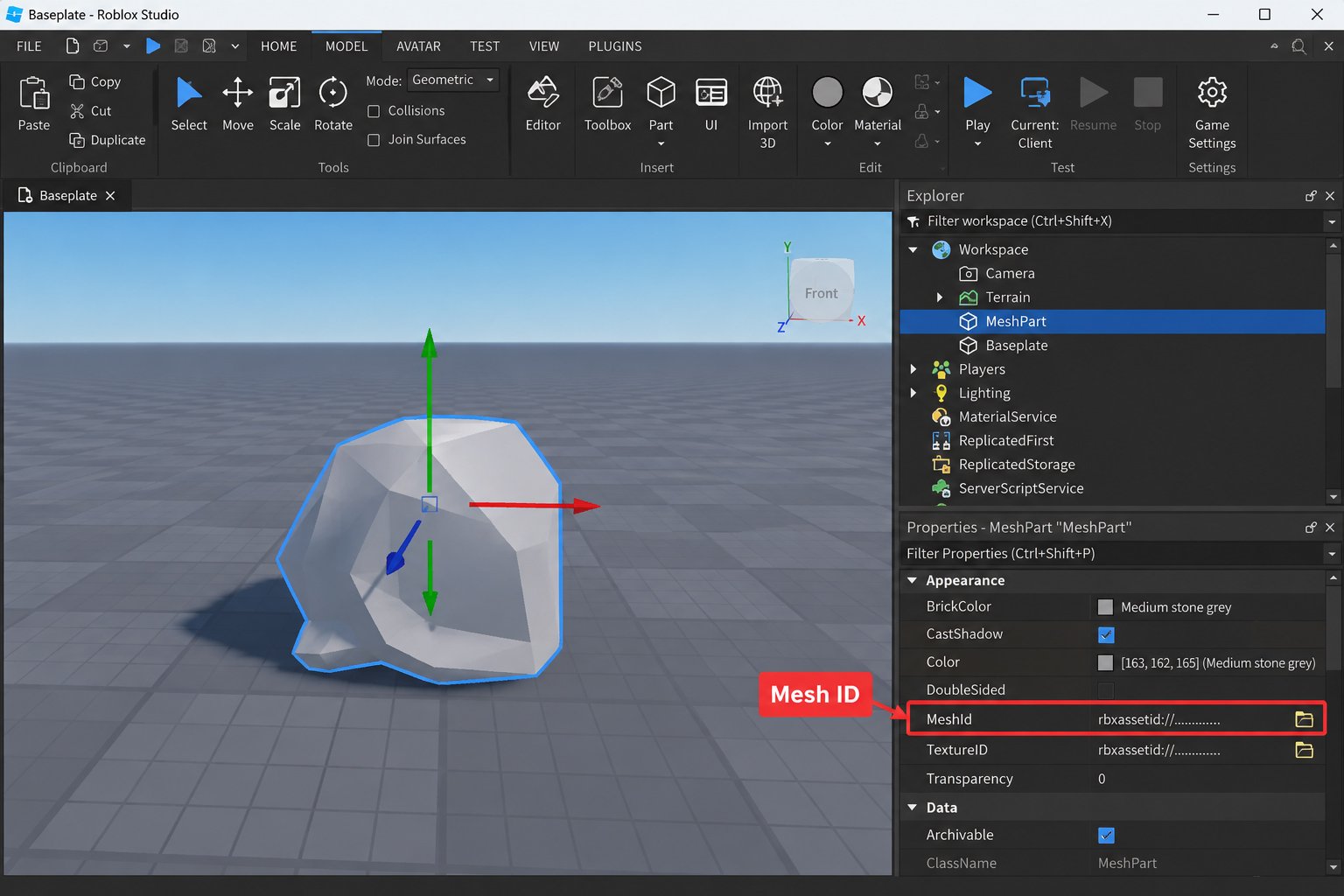
In this guide, we’ll focus on the Roblox Mesh ID List. So, how do you find a Mesh ID in Roblox? Here’s a step-by-step guide you can follow:
- Open Roblox Studio and open the place you want to work on.
- Select a MeshPart from the Explorer window.
- Open the Properties window and find the Mesh ID property.
- Copy the Mesh ID value so you can use it when needed.
You can also find mesh assets through the Roblox Toolbox in Studio. The Toolbox lets you search for meshes and other asset types, inspect available assets, and add them to your project. For more information, see the Roblox Toolbox documentation.
How to Use a Roblox Mesh ID
Using a Mesh ID in Roblox Studio is straightforward when you already have a MeshPart to work with. Even if you have the correct ID, it needs to be entered into the appropriate property.
Here are the easy steps for using a Mesh ID in Roblox:
- Select the MeshPart you want to edit in the Roblox Studio workspace or Explorer window.
- Open the Properties window for the selected MeshPart.
- Find the Mesh ID property.
- Paste the mesh asset ID into the available field.
- Check the viewport to make sure the MeshPart displays the expected mesh.
- Adjust the position, color, scale, or other properties as needed.
Mesh ID vs. Asset ID vs. Texture ID
You might be confused about the difference between Mesh, Asset, and Texture in Roblox. All three terms are related to Roblox assets, but they refer to different things.
A Mesh ID identifies a mesh asset used for the 3D geometry of an object. This is different from a Texture ID, which identifies the texture applied to the surface of a MeshPart. The term “Asset ID” is more general because Roblox uses IDs for many different types of assets, including meshes, images, audio, and other content.
A common mistake is failing to identify whether an ID refers to a mesh or another type of asset. If the wrong ID is entered into the Mesh ID property, the expected mesh may not load. A Texture ID should be used for the texture property instead.
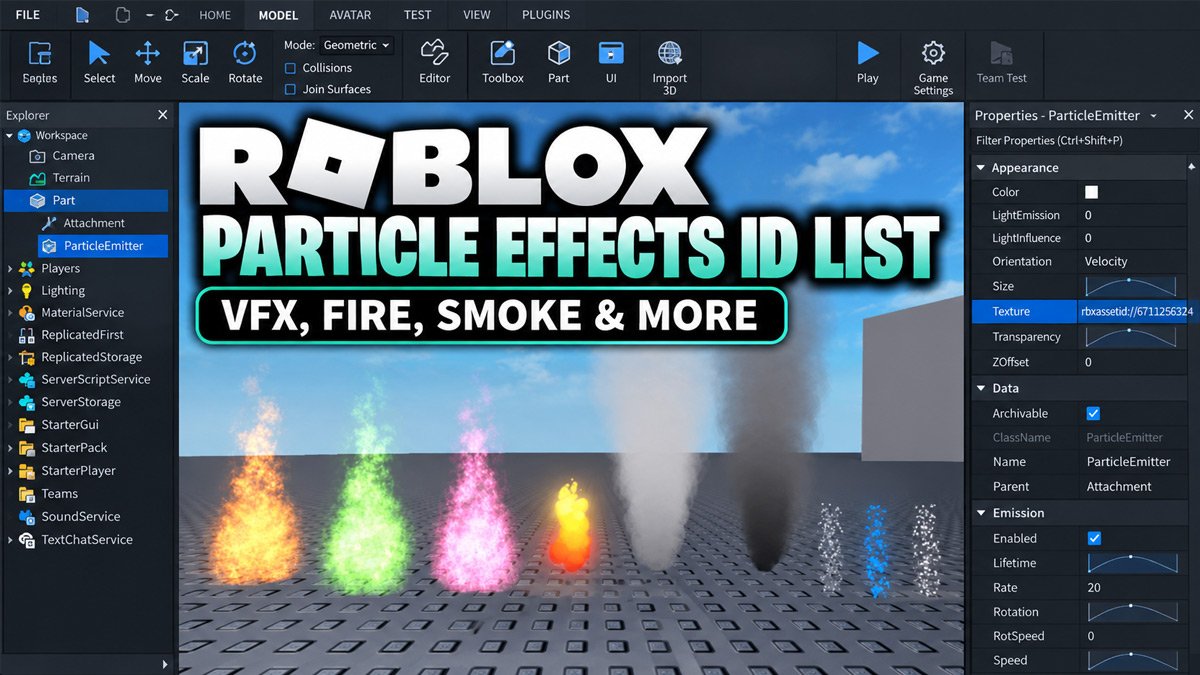
Looking for particle effects for your Roblox creations? Check out our Roblox Particle Effects ID List to find VFX textures for fire, smoke, sparks, and more.
A Decal is another type of asset that applies an image to the surface of an object. Decals also have asset IDs, but a Decal ID should not be confused with a Mesh ID or Texture ID.
Essentially, a Mesh defines the 3D shape of an object, while a Texture affects its surface appearance. An Asset is a broader term used for different types of content in Roblox. Understanding these differences makes it easier to use the correct ID in Roblox Studio.
How to Get the Mesh ID of a Roblox Item
Items in Roblox can contain different types of assets, including meshes and textures. If the item contains a MeshPart, you can inspect that MeshPart to find its Mesh ID.
Follow the steps below to get the Mesh ID of a mesh in Roblox Studio:
- Open a project in Roblox Studio.
- Find the MeshPart that contains the mesh you want to inspect.
- Select the MeshPart in the Explorer window.
- Open the Properties window.
- Find the Mesh ID property.
- Copy the Mesh ID value and use it where needed.
A mesh is one type of asset used in Roblox. Depending on the object, other asset types such as textures, images, or decals may also be involved. This is why it is important to identify the specific asset type before using its ID.
Roblox Mesh ID Problems and Common Errors
Not all IDs you find will work as expected. Several factors can prevent an ID from functioning properly for your project. Check out the common issues that occur when using the Roblox Mesh ID List:
Invalid ID
If you mistakenly enter an ID in the wrong field, it may be detected as invalid in Roblox Studio. So, identify the ID type, copy it, and paste it into the corresponding property. You may have found an ID, but is it a Mesh ID or not?
If it’s a Texture ID, don’t enter it in the Mesh ID field because that’s invalid. A Texture represents an object’s surface, while a Mesh represents its 3D shape.
Asset Not Available
This can happen due to a typo, so make sure to double-check that the ID is correct. To avoid typos, simply copy and paste the ID. Another cause is that the asset may no longer be available because it was removed, deleted, or restricted. In these cases, an ID that worked previously may no longer function as expected.
Roblox Changes or Restrictions
Roblox may update its asset system, permissions, or available features, which can affect how certain assets are used in Studio. As a result, an ID that worked previously may not always behave the same way.
If a Mesh ID suddenly stops working, check the current Roblox documentation and the asset’s availability before assuming that the ID itself is incorrect.
Usage Errors
Understand the differences between ID types and use the correct ID in the appropriate property. Avoid typing IDs manually; copying and pasting is safer.
Remember that Mesh is not the only factor affecting an object’s overall appearance. Textures and other visual properties can also change how a MeshPart looks, so check those properties if the mesh loads but does not appear as expected.
Roblox Feature Changes
Roblox provides updated guides whenever there are major updates. Check whether the official guide you’re reading is recent or from several years ago. If it’s an old guide, things may have changed, including how Mesh IDs are applied to 3D object models.
Frequently Asked Questions
What is a Roblox Mesh ID?
This is an ID used to reference a mesh asset in Roblox. A mesh represents the 3D geometry of an object, including its shape and structure.
How do I find a Roblox Mesh ID?
Select the MeshPart you want to inspect in Roblox Studio, open its Properties, and look for the Mesh ID property. You can also use the Roblox Toolbox to find mesh assets and inspect their available information.
How do I use a Mesh ID?
Once you have the Mesh ID, enter it into the Mesh ID property of a MeshPart in Roblox Studio. Check the viewport to make sure the expected mesh loads correctly, then adjust the object’s other properties as needed.
Is a Mesh ID the same as an Asset ID?
A Mesh ID is a specific asset reference for a mesh, while Asset ID is a broader term used for different types of Roblox assets. Other asset types can have their own IDs, so not every Asset ID refers to a mesh.
Is a Mesh ID the same as a Texture ID?
They are different. A Mesh ID references the 3D geometry of a mesh, while a Texture ID references the texture applied to the surface of a MeshPart.
Why isn’t my Roblox Mesh ID working?
Double-check whether the ID is correct and whether it belongs to a mesh. Make sure you are entering it into the Mesh ID property of a MeshPart. If the ID is correct but the mesh still does not load, the asset may no longer be available or may have access restrictions.