 Posted by
 If you are looking for Roblox Surf commands, the first thing to know is that Surf command lists aren’t always interchangeable. The Roblox experience called Surf, created by StrafesNET, has its own command system, so commands documented for Counter-Strike Surf or another Roblox experience shouldn’t automatically be treated as commands for this game.
The current Surf experience is still listed as a Roblox game by StrafesNET, with a 16-player server limit. Its public game description also confirms the !tutorial chat command for opening a text-based surfing tutorial.
This guide separates commands into Verified and Conditional groups. The distinction matters because some commands are documented specifically for the Roblox Surf command system, while older community lists use a different prefix or describe commands that may belong to an earlier implementation.
Roblox Surf Commands List
The most useful command reference currently available for the StrafesNET Surf command system is a developer-maintained GitHub Gist. It explicitly identifies itself as “Roblox Surf Game Commands” and states that the commands are entered through chat. It also says chat can be opened with the /key.
✅ Verified Roblox Surf Commands
The following commands are directly listed in the Roblox Surf command reference. Their syntax and stated functions are taken from that reference rather than inferred from similarly named commands in other Surf games.
Swipe left to see more →
| Command | Function | Example | Permission | Evidence |
|---|---|---|---|---|
| /bind MouseButton2 LookRight | Binds the right mouse button to LookRight | /bind MouseButton2 LookRight | Not specified | GitHub command documentation lists the exact syntax under TurnBinds. |
| /bind MouseButton1 LookLeft | Binds the left mouse button to LookLeft | /bind MouseButton1 LookLeft | Not specified | GitHub command documentation lists the exact syntax under TurnBinds. |
| /turnspeed (number) | Changes turning speed | /turnspeed 5 | Not specified | GitHub command documentation describes the command as changing turning speed. |
| /sk | Displays keystrokes | /sk | Not specified | GitHub command documentation lists /sk under Indicators / GUI. |
| /showkeys | Displays keystrokes | /showkeys | Not specified | GitHub command documentation lists /showkeys as an alias for /sk. |
| /sc | Shows barriers / player clip areas | /sc | Not specified | GitHub command documentation lists the command under Indicators / GUI. |
| /strafe | Shows strafe efficiency | /strafe | Not specified | GitHub command documentation lists the command under Indicators / GUI. |
| /apex | Shows the maximum height possible on the current trajectory | /apex | Not specified | GitHub command documentation describes the trajectory indicator. |
| /hit | Shows a red box representing the predicted collision area | /hit | Not specified | GitHub command documentation describes the collision indicator. |
| /gauge | Shows optimal mouse speed for gaining speed from strafing | /gauge | Not specified | GitHub command documentation lists the mouse-speed indicator. |
| /energy | Displays a speed indicator | /energy | Not specified | GitHub command documentation lists /energy under Indicators / GUI. |
| /menu | Opens the main menu | /menu | Not specified | GitHub command documentation says /menu opens the main menu and that M can also be used. |
| /maps | Shows maps and allows a map nomination | /maps | Not specified | GitHub command documentation lists /maps under Menus. |
| /nominate | Opens the map nomination function | /nominate | Not specified | GitHub command documentation lists /nominate as an alternative to /maps. |
| /serverlist | Opens the server list | /serverlist | Not specified | GitHub command documentation lists it as the command for switching servers. |
| /r | Resets the player | /r | Not specified | GitHub command documentation defines /r as reset and notes R as an alternative. |
| /rtv | Starts or participates in Rock the Vote | /rtv | Not specified | GitHub command documentation lists /rtv under Gameplay. |
| /hide | Hides players | /hide | Not specified | GitHub command documentation lists /hide under Gameplay. |
| /show | Shows players | /show | Not specified | GitHub command documentation lists /show under Gameplay. |
| /whisper | Sends a private message to another player | /whisper PlayerName hello | Not specified | GitHub command documentation lists /whisper as the private-message command. |
The command reference also contains several development or testing-related commands, which deserve separate treatment rather than being mixed into ordinary gameplay commands.
❗Conditional Roblox Surf Commands
These commands are documented in the same Roblox Surf command reference, but their names or functions indicate that they are tied to development, testing, or special destinations rather than normal public gameplay.
Swipe left to see more →
| Command | Function | Example | Condition / Requirement | Evidence |
|---|---|---|---|---|
| /dev | Teleports the player to the development area | /dev | Destination appears intended for development use | GitHub Roblox Surf command documentation lists it under Miscellaneous as a developer teleport. |
| /bhop | Teleports the player to the bhop area | /bhop | Depends on the corresponding destination being available | GitHub Roblox Surf command documentation lists the command as a teleport to bhop. |
| /surf | Teleports the player to Surf | /surf | Destination-dependent | GitHub Roblox Surf command documentation lists /surf as a teleport command. |
| /surftestmap | Teleports the player to the Surf test map | /surftestmap | Test-map availability | GitHub Roblox Surf command documentation lists the command under Miscellaneous. |
| /bhopmaptest | Teleports the player to the bhop test map | /bhopmaptest | Test-map availability | GitHub Roblox Surf command documentation lists the command under Miscellaneous. |
These commands should not be interpreted as proof that every player can access every listed destination in every server. The documentation identifies the commands and destinations, but it does not provide a universal player-permission statement for each development or test teleport.
How to Use Roblox Surf Commands
The basic input method is straightforward: open the Roblox chat interface and enter the supported command. The current command reference specifically says that the commands are inserted into chat and that the /key can be used to open chat.
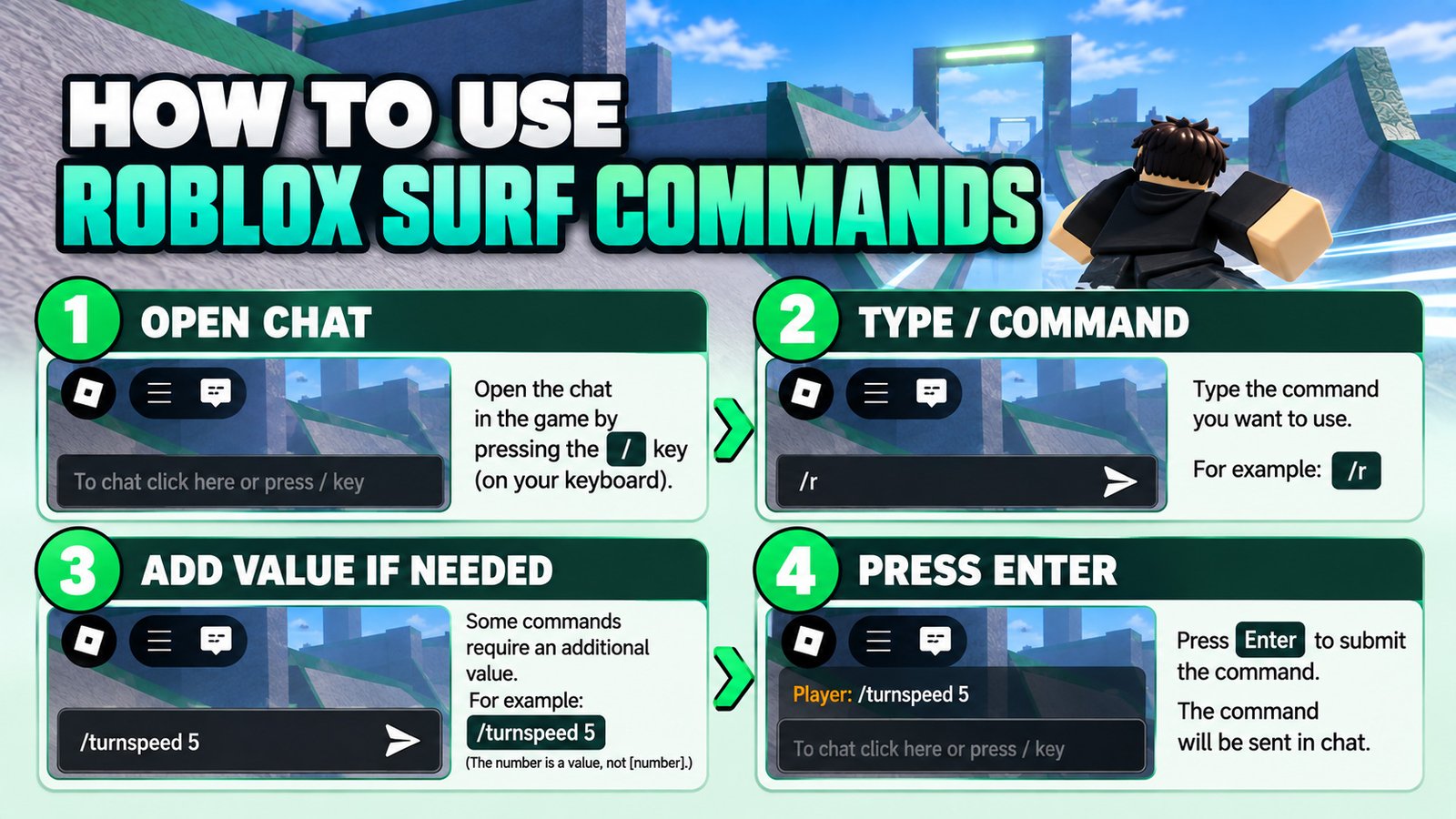
For a command without arguments, enter the command exactly as documented.
For example:
/r
The documented result is a player reset. The reference also notes that pressing R performs the same reset function, so using the command is not always necessary when the keyboard shortcut is available.
Commands with arguments require more care. The clearest example is:
/turnspeed [number]
The [number] portion represents the value supplied to the command. Unlike a command such as /r, this is not simply a fixed word that should be copied literally. The command reference describes it as controlling turning speed.
The same principle applies to commands such as /whisper, where the command needs a recipient and message rather than being executed as a standalone toggle.
One useful habit is to copy the command spelling exactly. A command system is not the same thing as natural-language chat: changing the prefix, command name, or argument format can make an otherwise valid command fail.
Roblox Surf Commands for Practice
Surf practice becomes easier when the command system gives you information about what your movement is doing.
The indicators are particularly relevant here. /sk or /showkeys can display keystrokes, making it easier to see whether your inputs match what you intended. The /strafe command is documented as showing strafe efficiency, while /apex provides information about the maximum height available from the current trajectory.
/hit and /gauge are also more useful for practice than ordinary chat commands. The former represents where you are predicted to collide if you do not change direction. The latter provides an indication of optimal mouse speed for maximizing speed gains from strafing.
That makes the command system useful for diagnosing movement rather than merely controlling the server.
For example, a player struggling with air movement can use /showkeys to inspect inputs, then use /strafe or /gauge to understand the movement being produced. These tools do not replace practice, but they provide information that is otherwise difficult to judge while moving quickly.
For restarting a run or returning to a reset state, /r is the directly documented option. /autostart is different: the command reference describes it as resetting on death and resetting at the beginning when a map has stages.
Roblox Surf Timer Commands
Some older online pages list commands such as !besttime, !rank, !topspeed, and !timer. However, those commands come from older community documentation and use a different ! prefix. They should not automatically be merged with the current / command reference.
The current Roblox Surf command documentation examined for this guide does not list /timer, /besttime, /rank, /topspeed, or /record.
For that reason, these commands are not included in the Verified command table.
This distinction matters when searching for a Roblox Surf commands timer query. A search result can look convincing while actually describing an older command implementation. The older documentation does list !timer as a menu for rank information, timer HUD settings, and fail times, but its age and different command format mean it should be treated as historical or implementation-specific rather than a universal current command.
The same caution applies to leaderboard and record commands. If a command is not present in the current command reference, it should not be presented as a guaranteed feature simply because another Surf game uses the same concept.
Roblox Surf Admin Commands
There is no sufficiently strong evidence in the current command reference examined here to publish a separate universal list of Roblox Surf Admin Commands.
The current Roblox Surf command reference lists commands for gameplay, indicators, menus, messages, and development destinations, but it does not provide an admin/moderator permission matrix.
Therefore, commands such as /dev, /bhop, and /surftestmap are better described as conditional or development-related rather than automatically calling them admin commands.
This avoids a common mistake in command guides: assuming that every teleport, map, or server command requires administrator privileges. Without documentation confirming the permission requirement, that conclusion would be speculation.
Roblox Surf Commands Not Working?
When a command fails, start with the command itself rather than assuming the entire system is broken.
1. Check the prefix.
The current command reference uses /, while older community material may use !. Those formats should not be mixed.
2. Check the spelling.
/showkeys and /sk are documented options, but an incorrectly typed variation may not be recognized.
3. Check the argument.
Commands such as /turnspeed require a value. A command that expects an argument cannot necessarily be executed in the same way as /r.
4. Check whether the command is conditional.
Development and test-map teleports may depend on destinations or configurations that are not relevant to ordinary gameplay.
5. Check the version of the documentation.
Surf has changed over time. The current experience is associated with StrafesNET, while an older Roblox Surf experience page states that the game had moved to another place.
6. Do not copy commands from another Surf game.
Counter-Strike Surf, Garry’s Mod Surf, and another Roblox experience may have completely different command systems. A familiar command name is not evidence that it works here.
7. Use the exact documented syntax.
If a command is written as /turnspeed [number], treat the argument as part of the command format instead of improvising a different structure.
Frequently Asked Questions
What are the Roblox Surf commands?
The current documented command set includes movement and interface tools such as /bind, /turnspeed, /sk, /strafe, /apex, /hit, /gauge, /energy, /menu, /serverlist, /r, /rtv, /spec, and several other gameplay and messaging commands. The command reference is specifically identified as documentation for Roblox Surf.
How do you use commands in Roblox Surf?
Open the chat input and enter the command using its documented prefix and syntax. The current command reference states that /opens chat and that commands are entered through chat.
Which Roblox Surf commands are for practice?
Commands such as /sk, /showkeys, /strafe, /apex, /hit, /gauge, and /energy are the most directly relevant to movement practice because they provide information about inputs, trajectory, collisions, strafing, or speed. /r is also useful when you need to reset.
Why are Roblox Surf commands not working?
The most common possibilities are an incorrect prefix, typo, missing argument, unsupported command, different command implementation, or a command tied to a particular version or server configuration. Compare the command with the current documentation before assuming it has been removed.
Final Notes on the Roblox Surf Command List
The safest way to maintain a Roblox Surf command list is to treat the command system as version-sensitive rather than assuming every command found in search results belongs to the same game.
The current documentation provides a useful set of commands for movement indicators, binds, menus, gameplay controls, messaging, and development destinations. Meanwhile, the Roblox Surf experience itself confirms the game’s identity and currently exposes !tutorial in its public description.
Older sources can still be useful for understanding how Surf commands have been documented historically, but they should not silently override current evidence. In particular, timer, ranking, and stage-related commands found with an older ! prefix should be checked against the current implementation before being presented as universal.
That distinction is what keeps a command guide useful: a shorter list with traceable evidence is more valuable than a huge collection of commands copied from unrelated Surf games.