 Posted by
 Roblox is opening normally but refuses to put you into an experience, the problem may not be your account at all. A Roblox can’t join game issue can come from an unstable internet connection, a Roblox service disruption, a problem with the specific experience, an outdated or corrupted client, browser issues, firewall settings, or restrictions on who can access a server.
First, determine whether you can join another Roblox experience. If other games work, the problem is probably limited to the experience or server you are trying to enter. If nothing works, focus instead on your connection, Roblox services, and device, browser, and security settings.
Quick Troubleshooting Decision Tree
To do quick troubleshooting, you can start with one simple test and find the problem.
Can you join another Roblox game?
If Yes: The problem is more likely specific to that experience. Check its server availability, access restrictions, private-server settings, or temporary issues.
If No: Investigate your internet connection, Roblox service status, app or browser, device, firewall, and installation.
Do you See an Error Code?
Next, check whether Roblox displays an error code.
If Yes: Codes such as 277, 279, and 524 can provide useful clues about what is failing. Roblox’s current error-code documentation includes these codes among its documented connection and access errors.
If No: If Roblox simply remains stuck while joining, prioritize the connection, Roblox Status, restarting the client, testing another browser or device, and then software maintenance.
Diagnostic Path
The diagnostic path is straightforward:
Can you join another game?
→ YES → Proceed to Game-specific troubleshooting
→ NO → Proceed to Connection / Roblox status / Device troubleshooting
↓
Is there an error code displayed?
→ YES → Identify the code and apply its specific fix
→ NO → Proceed to General troubleshooting
↓
Still can’t join? → Contact Roblox Support.
Why Can’t I Join a Roblox Game?
Several different problems can produce almost the same symptom. You press Play, but the experience never opens successfully. Knowing which category you are dealing with prevents you from wasting time on fixes that have little connection to the actual problem.
Your Internet Connection Is Unstable
Roblox needs a consistent connection between the client and its servers. Weak Wi-Fi, interruptions, low bandwidth, or an inconsistent wireless connection can interfere with joining an online experience.
Roblox’s own connection guidance lists firewall problems, low-bandwidth connections, and inconsistent wireless connections among possible causes of connection failures. A useful test is to open another online service. If websites or other multiplayer services are also struggling, Roblox may not be the underlying problem.
Roblox Is Having a Service Problem
Sometimes your device is working correctly, and Roblox itself is experiencing a service disruption or maintenance event. Roblox states that service problems can make joining an experience delayed or unsuccessful and recommends checking its Status page when this happens.
The official Roblox Status page also separates services such as the website, mobile app, games, and Game Join, making it useful when several experiences suddenly stop working. Do not assume Roblox is down simply because you cannot join one game. Check the current status before changing settings on your device.
Only One Roblox Game Is Affected
If you can enter other experiences without difficulty, that result is valuable information. It suggests that your Roblox installation and general connection are probably functioning, while the affected experience may have a server problem, access restriction, private-server limitation, or temporary issue.
Your Roblox App, Browser, or Device Has a Problem
A client-side problem can also prevent an experience from opening. An outdated application, corrupted temporary data, browser issue, or device-specific glitch can interfere with the connection process.
Roblox’s desktop troubleshooting guidance specifically identifies corrupted temporary files, firewall interference, and damaged Roblox files as possible causes of problems when connecting to experiences.
Firewall or Access Restrictions Are Blocking the Connection
A firewall or antivirus program may interfere with Roblox’s network communication. Separately, an experience or private server may restrict who can enter. Roblox states that users need the necessary permission to join certain experiences, and private servers can have their own access settings.
How to Fix Roblox Can’t Join Game Problems
Once you know whether the problem affects one experience or multiple experiences, work through the following troubleshooting groups. They are arranged from relatively simple checks to more technical possibilities.
1. Check Your Internet Connection
First, confirm that your internet connection is actually working normally.
Open a few websites or use another online service. If everything else is also slow or unavailable, address the network problem before changing Roblox settings.
Do these when the connection is unstable:
- Restart your router if necessary
- Move closer to the Wi-Fi access point if the signal is weak
- Try a different network if one is available
- If possible, test a wired connection on a compatible computer
The goal is to determine whether your network is responsible for the failed connection. Roblox’s support documentation also recommends checking wireless connections and notes that network inconsistency can contribute to connection problems.
2. Check Roblox Server Status
Before changing your device configuration, check the official Roblox Status page. If Roblox reports a service disruption affecting games or game joining, extensive troubleshooting on your computer may not accomplish anything.
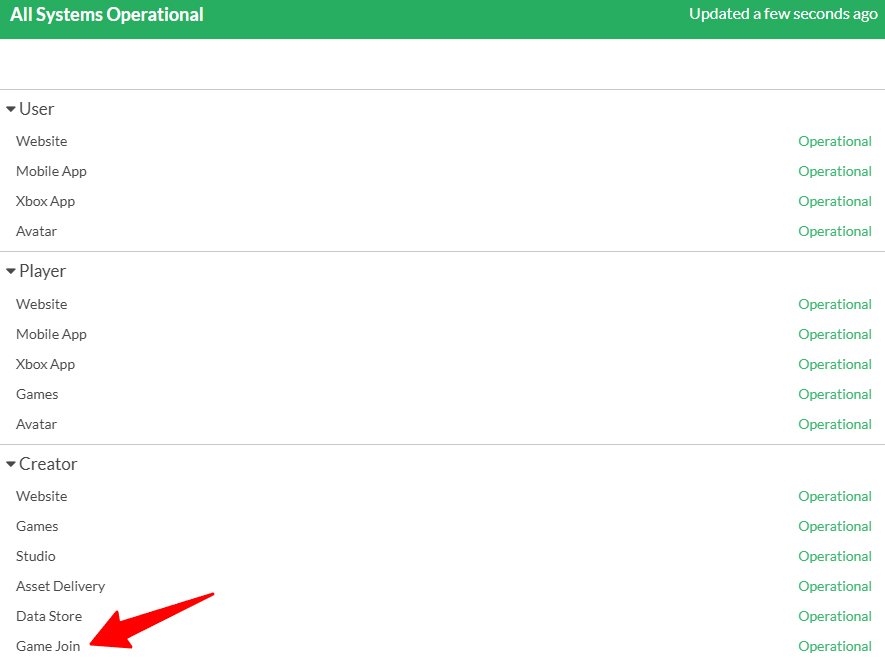
Wait for the service issue to be resolved, then try joining again. Roblox specifically notes that service problems can cause experience joins to be delayed or unsuccessful.
3. Try another Roblox Game
This is a diagnostic test, not merely another possible fix. Open a different experience, select Play, and see what happens.
If the second experience loads normally, your internet connection and Roblox client are probably capable of connecting successfully. Concentrate on the original experience rather than immediately reinstalling Roblox.
If the second experience fails in the same way, the problem is broader. Continue with connection, service-status, browser, device, and security troubleshooting.
4. Restart Roblox, Then Test another Browser or Device
Completely close Roblox rather than simply leaving the current screen. After that, do the following steps:
- Close the Roblox application or browser session.
- Reopen Roblox.
- Try joining the experience again.
If you normally use a browser, test another supported browser. If possible, test the same account on another compatible device.
Roblox recommends using a current supported browser and suggests trying another browser when connection-related problems occur. The purpose of this test is isolation. If Roblox works on another device but not your usual one, the problem is probably local to that device, its software, or its network configuration.
5. Clear Browser Data and Update or Reinstall Roblox
If browser-based joining appears to be the problem, clear the relevant temporary browser data, restart the browser, and try again. You do not need to perform an elaborate browser reset immediately. The objective is to remove potentially corrupted temporary data while preserving the rest of your configuration.
For the Roblox application, check whether an update is available. If the problem continues after the simpler checks, reinstall Roblox from an official source.
Roblox’s desktop support guidance includes restarting the computer, clearing temporary internet files, checking firewall settings, and reinstalling Roblox as troubleshooting measures. Reinstallation makes more sense when the problem follows the application on one device. It is less useful as a first response when only one specific experience refuses to open.
6. Check Firewall, Security Software, and Experience Permissions
Firewall or security software: Antivirus and internet-security programs can restrict applications from communicating with the internet. Roblox recommends allowing the application through the relevant security software when it is being blocked.
Do not leave your firewall permanently disabled just to test Roblox. If temporarily disabling a security feature is necessary for diagnosis, restore it afterward and configure an appropriate allow rule instead.
Experience permissions: If only one experience fails, check whether your account has the required permission to access it. Roblox states that certain experiences require specific permissions before a player can join.
Private servers: A private server can have its own access restrictions. Roblox allows private-server owners to configure who can play, including specific users or friends.
If your problem happens specifically when joining someone’s private server, treat it as an access issue first rather than assuming your entire Roblox connection is broken.
7. Check for a Roblox Error Code
If Roblox displays an error code, write it down before trying several unrelated fixes. For example:
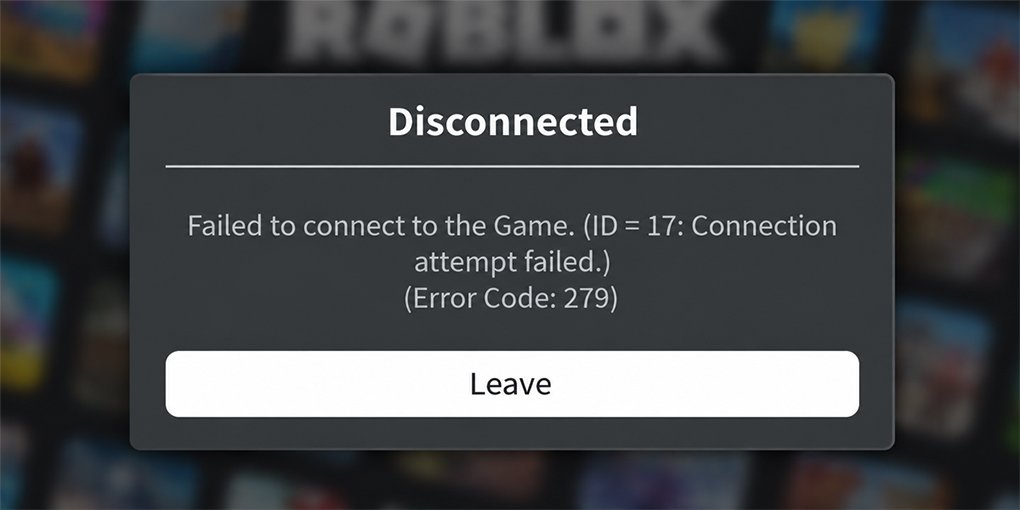
- Error 277 relates to a connection being lost between the client and game server.
- Error 279 / ID 17 is associated with failing to connect to a game.
- Error 524 generally indicates that you do not have permission to join a particular experience or server.
You do not need to memorize dozens of codes. Think of the code as a diagnostic clue that tells you which category deserves attention first.
What If I Can’t Join One Roblox Game?
Suppose Game A refuses to open, but Game B launches normally. That distinction is important.
Your Roblox client is already demonstrating that it can connect successfully. The affected experience may have a temporary server issue, an access restriction, private-server settings, or another problem specific to that experience.
Try another available server if the experience provides that option. Then try again later, especially if the problem appears suddenly. You can also check information provided by the experience’s developer, such as an official community announcement or status update, when one exists.
For private servers, verify that the owner has permitted your account to join. Roblox’s private-server documentation explains that owners can configure who is allowed to access their servers. The key point is simple, if every other experience works, avoid treating the situation as a general Roblox installation failure.
What If I Can’t Join Any Roblox Game?
Start with your internet connection, then check the Roblox Status page. If Roblox services are operational, restart the Roblox client and test another browser or compatible device if possible.
Next, investigate firewall or security software. Roblox’s connection documentation identifies firewall restrictions as a common cause of connection problems and also recommends checking wireless consistency and supported browsers.
If the problem remains limited to one device, update or reinstall Roblox. If an error code appears, record it and use it to narrow the problem rather than trying random fixes.
Testing another network or device is particularly useful here. For example, if Roblox works on another network but not your home connection, that points toward the network configuration rather than the experience itself.
When Should I Contact Roblox Support?
Support is particularly appropriate when no experience works, the same error repeatedly appears, the problem follows you across multiple devices or networks, or you suspect an account or access restriction.
Roblox’s connection guidance recommends contacting support when the suggested troubleshooting does not resolve the issue and asks users to provide useful diagnostic details such as the error message, device model, operating-system version, and steps that reproduce the problem.
Never provide your password, two-step verification codes, backup codes, authentication cookies, or session tokens while seeking technical help.
Frequently Asked Questions
Why can’t I join a Roblox game?
A failed join can be caused by an unstable connection, Roblox service disruption, an issue with the specific experience, a browser or application problem, firewall interference, or access restrictions. Testing another experience is one of the fastest ways to narrow the possibilities.
How do I fix Roblox when I can’t join any game?
Start with your internet connection and the official Roblox Status page. Then restart Roblox, test another browser or device, check firewall and security settings, update or reinstall the application if necessary, and investigate any error code that appears.
Why is Roblox stuck when joining a game?
A joining screen that never completes can be related to the connection between Roblox and its servers, a service disruption, browser or client problems, or an issue with the particular experience. Test another game before making major changes.
What should I do if Roblox shows an error code?
Record the code and use it as a diagnostic clue. Codes such as 277, 279, and 524 point toward different categories of problems, so identifying the code can be more useful than trying unrelated fixes. Roblox maintains an official error-code reference for documented codes.
Final Takeaway
When Roblox can’t join game problems appear, do not start with the most drastic solution. First determine whether the failure affects one experience or every experience. Then check your connection and Roblox Status, restart the client, test another browser or device, maintain the application, review security and access settings, and use any error code as a clue. If the problem persists after those checks, Roblox Support is the appropriate next step.