 Posted by
 If you need a Roblox particle effects ID for a Roblox Studio project, the important detail is knowing what kind of ID you are copying. A particle texture ID is an asset reference used by a ParticleEmitter to determine the image displayed by each particle. It is not the same thing as a User ID, Place ID, sound ID, or mesh ID.
This list focuses on particle texture assets that can be verified against Roblox documentation and related Roblox developer resources. The collection includes textures used for explosions, sparks, stars, lightning, dust, flares, and other visual effects. Some IDs are also useful as building blocks for fire, smoke, magic, or energy effects when combined with the right emitter settings.
Roblox Particle Effects ID List
The table below contains asset IDs that are documented in Roblox Creator Hub examples or can be cross-checked against Roblox developer resources. Roblox’s own documentation shows that these numbers can be entered into the Texture property of a ParticleEmitter.
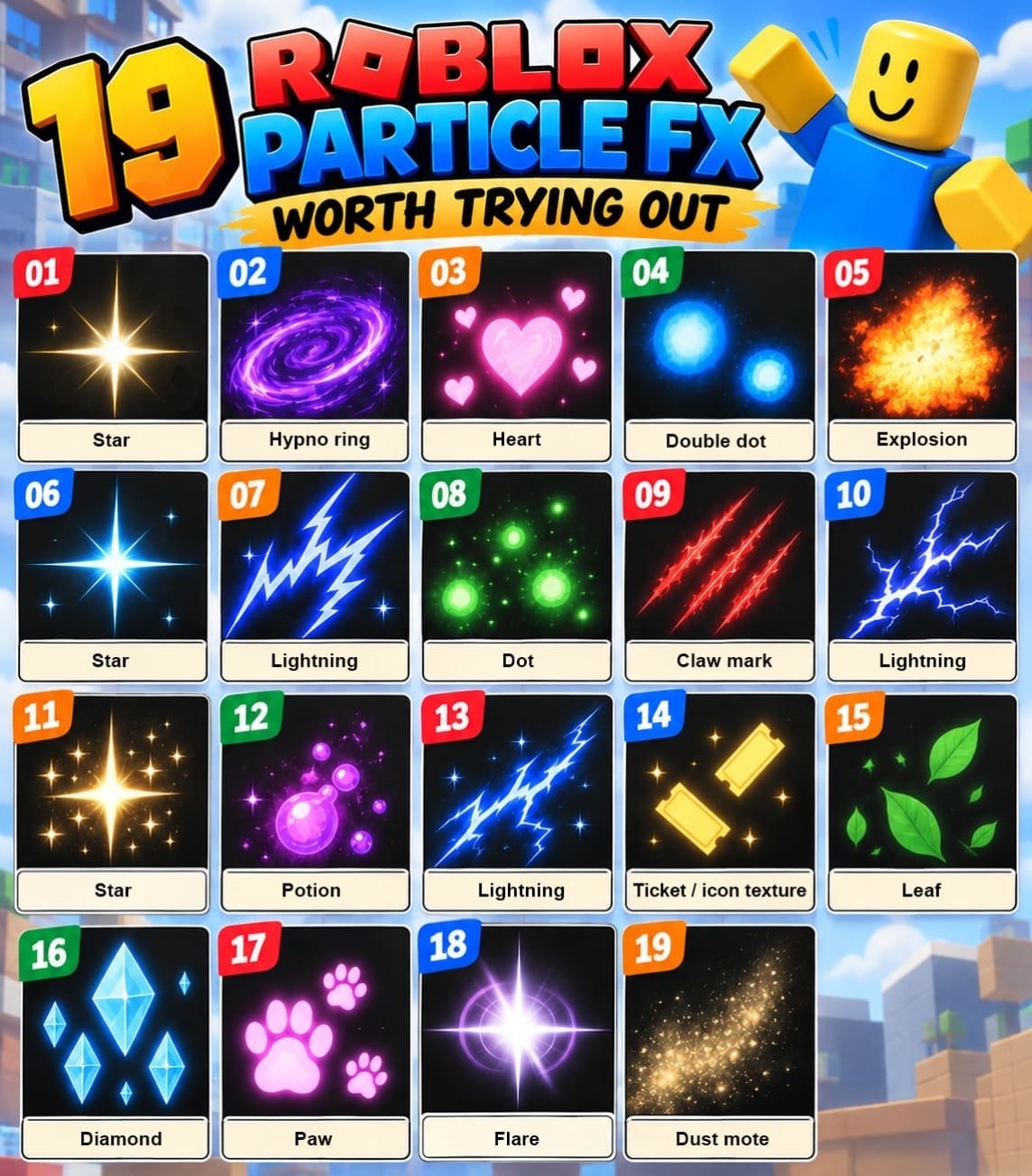
Swipe left to see more →
| Effect / Use | Particle Texture / Asset ID | Type |
|---|---|---|
| Star | 5860841663 | Spark / VFX |
| Hypno ring | 5857851812 | Ring / VFX |
| Heart | 5857851618 | Shape / VFX |
| Double dot | 6711256324 | Dot / VFX |
| Explosion | 5833235272 | Explosion |
| Star | 6772783963 | Spark / VFX |
| Lightning | 5833323391 | Energy / Lightning |
| Dot | 5857892330 | Glow / Dot |
| Claw mark | 5857892405 | Impact / VFX |
| Lightning | 5857931724 | Energy / Lightning |
| Star | 5860841737 | Spark / VFX |
| Potion | 6772766862 | Magic / VFX |
| Lightning | 6772766551 | Energy / Lightning |
| Ticket / icon texture | 6749057157 | Shape / VFX |
| Leaf | 6703369286 | Decorative VFX |
| Diamond | 6772766413 | Shape / VFX |
| Paw | 6803084085 | Shape / VFX |
| Flare | 8983307836 | Flare / Glow |
| Dust mote | 14302399641 | Dust |
The first group of textures is particularly useful because Roblox’s official particle-emitter tutorial supplies the IDs as a starter set for customizing explosion and laser-blast effects. The same documentation demonstrates pasting an asset ID into the Texture property of a ParticleEmitter.
The additional texture names in the table can be cross-checked against a Roblox Developer Forum resource that identifies several of the same assets by their visual names, including explosion, lightning, star, diamond, potion, paw, and other shapes. Those names should be treated as community descriptions of the images, not as official Roblox classifications.
Two IDs have a different role from the main starter set. Roblox’s current visual-effects documentation uses 8983307836 for a flare emitter and 14302399641 for dust motes. These are particularly useful references when building environmental VFX rather than a single burst.
A Note About Fire And Smoke Ids
A common problem with particle-ID lists is filling the table with random numbers labeled “fire” or “smoke.” That creates a misleading list when the asset cannot be traced to a reliable source.
The verified Roblox documentation reviewed for this article does not provide a dedicated set of current fire-texture and smoke-texture IDs comparable to the explosion starter pack above. For that reason, this list does not invent fire or smoke IDs simply to increase the number of entries.
Instead, you can use the verified textures above as components of a larger effect, or find a suitable image through Roblox’s Creator Store and copy its asset ID directly. Roblox’s documentation specifically describes this workflow for particle textures.
That distinction matters because a fire effect in Roblox does not necessarily require an asset named “fire.” A transparent circular texture, flare, glow, or irregular shape can become a convincing flame when its color, size, transparency, lifetime, rotation, and emission rate are configured appropriately.
Roblox Fire Particle IDs
There is an important technical distinction between a fire-looking particle and Roblox’s built-in Fire object.
A ParticleEmitter uses a 2D texture to render individual particles. Roblox’s documentation describes the Texture property as the image rendered on particles. The same texture can therefore be colored, resized, rotated, faded, and emitted repeatedly to create a fire-like visual.
The built-in Fire effect is a different object. It should not automatically be treated as a particle texture ID.
For a custom flame effect, one practical starting point is the verified flare texture:
8983307836
Roblox uses rbxassetid://8983307836 in its own basic visual-effects example. The example combines the texture with LightEmission, a long lifetime, controlled rate, rotation, and size changes to create a large flare.
That does not make the asset an “official fire texture.” It simply makes it a verified particle texture that can be adapted to a fire, flare, magical glow, or similar effect.
For a flame, try changing the emitter’s color toward orange or yellow, reducing the particle lifetime, and shaping the Size and Transparency sequences so particles appear quickly and disappear before they become repetitive.
Roblox Smoke Particle IDs
A smoke effect is usually the result of the texture plus emitter behavior. The texture itself does not determine whether a particle becomes thick smoke, a faint haze, dust, or a soft cloud.
For that reason, there is no reliable basis in the verified Roblox documentation reviewed here for labeling one of the listed IDs as an official “Roblox smoke particle ID.”
Instead, use the Creator Store or your own uploaded transparent image to obtain a smoke texture. Roblox specifically explains that a particle texture can be any 2D image, and transparent backgrounds generally work well for particles.
A smoke-style emitter normally benefits from:
- A relatively long Lifetime
- Low or moderate Speed
- Larger Size
- Gradual Transparency
- Low Rate for thin smoke or higher Rate for dense smoke
- Slight Rotation variation
- Appropriate Color
The texture and these settings work together. Changing only the asset ID rarely produces a finished effect.
Roblox VFX Particle IDs
The strongest use case for the verified IDs above is general VFX. For example, 5833235272 is specifically presented by Roblox as one of the textures available for an explosion example. Roblox also provides the same starter texture set for experimenting with different explosion appearances.
For energy-style effects, 5833323391 and 5857931724 are useful references because community documentation identifies them as lightning textures, while Roblox’s own documentation confirms their inclusion in its particle texture collection.
Here are several ways to approach the list:
Explosion
Start with 5833235272, then adjust Size, Lifetime, Transparency, and Color. Roblox specifically demonstrates this asset in an explosion workflow.
Lightning or energy
Try 5833323391 or 5857931724. Their shape makes them suitable for short-lived energy bursts, electrical effects, or magical attacks.
Star or sparkle
5860841663, 6772783963, and 5860841737 provide different star-shaped options documented in the Roblox particle texture examples and community references.
Glow or ring
5857851812 can be used as a ring-shaped visual element. Its appearance can change substantially when the emitter’s Size, Transparency, and LightEmission are modified.
Dust
14302399641 is directly used in Roblox’s environmental-art example as a dust-mote texture. The example uses a high emission rate, low particle speed, a 1–10 second lifetime, and other settings to create floating environmental dust.
How to Use a Roblox Particle Effect ID
You do not paste these numbers into a random Roblox ID field. The relevant property is the Texture property on a ParticleEmitter.
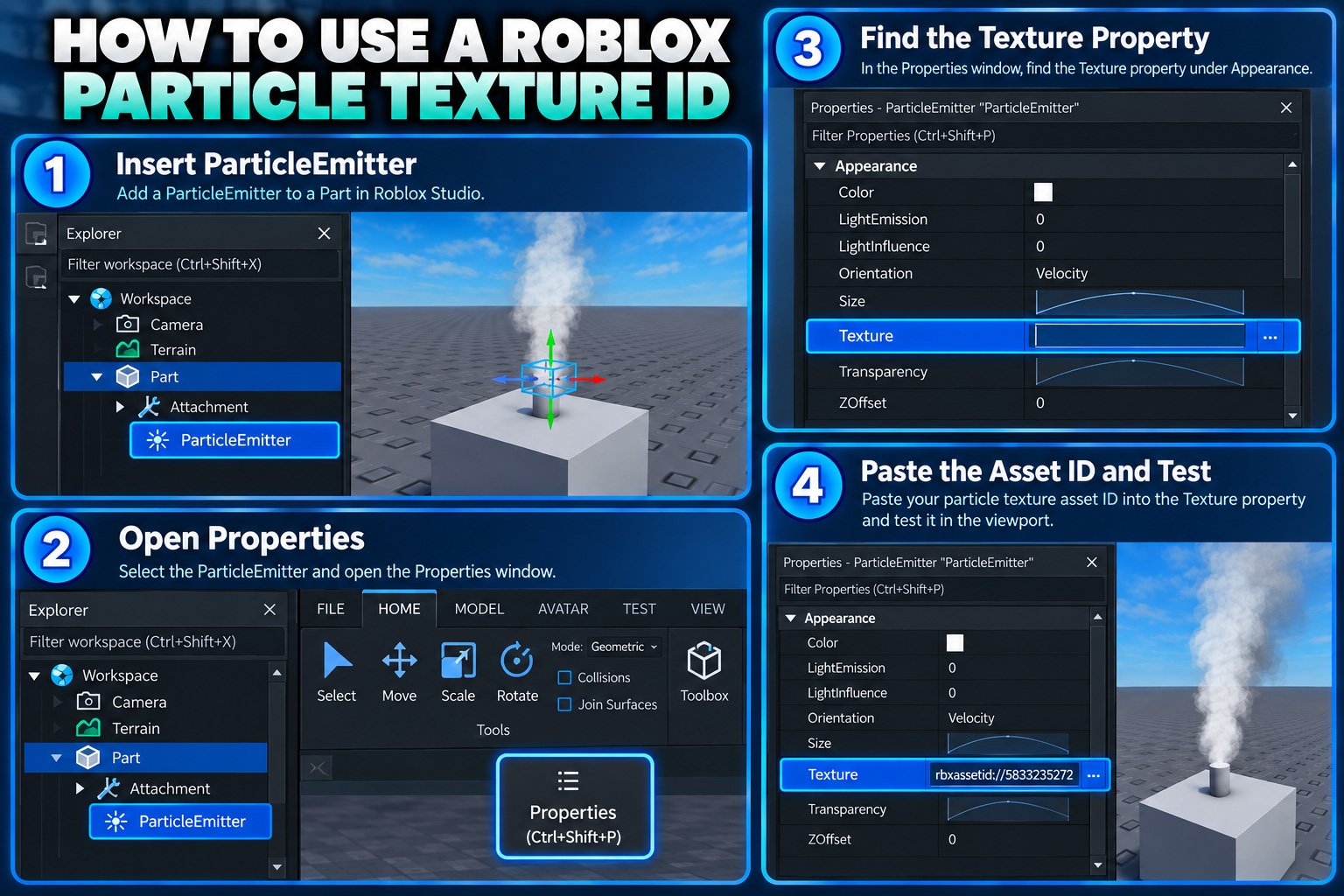
In Roblox Studio:
- Open your place in Roblox Studio.
- Insert a ParticleEmitter into a BasePart or Attachment.
- Select the ParticleEmitter.
- Open the Properties window.
- Find Texture.
- Paste the asset reference into the field.
- Use the rbxassetid://ID format when working with the asset URI.
- Press Enter and test the emitter.
For example:
rbxassetid://5833235272
Roblox’s own documentation shows this same pattern, including rbxassetid://1266170131 in its API example and the texture IDs used in its particle tutorials.
The emitter itself must also be placed correctly. Roblox explains that a ParticleEmitter needs to be parented to a BasePart or an Attachment to render particles into the world.
Once the texture appears, the visual result depends heavily on the other properties.
Properties worth adjusting
- Color changes the color applied to the particle texture.
- Size controls the world-space size of the rendered particle and can change throughout its lifetime.
- Lifetime determines how long each particle remains active.
- Rate controls automatic emission frequency.
- Speed determines the initial particle velocity.
- Transparency controls visibility throughout the particle’s lifetime.
- LightEmission changes how the texture blends with the scene. Roblox notes that a value of 1 produces additive blending, which can work well for glowing effects.
- Rotation can prevent repeated particles from looking identical, especially when using simple shapes such as stars, dots, or rings.
This is why the same particle texture can produce dramatically different results in two games.
How to Find More Roblox Particle Textures
If you need a specific fire, smoke, magic, dust, or impact texture that is not in the table, Roblox’s own tools are the most practical place to continue searching.
Open Toolbox from Roblox Studio. The Toolbox provides access to the Creator Store, Inventory, Recent assets, and creations. Roblox says the Creator Store contains assets made by Roblox and community creators.
A simple workflow is:
- Open Toolbox.
- Search for a visual such as particle, smoke, fire, spark, dust, or VFX.
- Inspect the available image or texture.
- Check that it is appropriate for your project.
- Use Copy Asset ID where available.
- Select your ParticleEmitter.
- Paste the ID into Texture.
Roblox’s particle-emitter documentation specifically describes selecting an image in Toolbox, choosing Copy Asset ID, and then pasting the ID into the ParticleEmitter’s Texture property.
This approach is more dependable than copying a random number from an old ID-list website because asset availability and permissions can change.
Roblox Particle Effects Not Working?
If an ID does not display, check the setup before assuming the number itself is wrong.
Wrong asset ID:
One missing digit is enough to reference a different asset.
Wrong property:
The ID belongs in the ParticleEmitter’s Texture property, not in an unrelated Roblox object.
Asset unavailable:
An asset can become unavailable, restricted, or otherwise inaccessible. Roblox explains that restricted assets are checked for permissions when they are loaded or used.
Emitter disabled:
If Enabled is false, automatic emission stops.
Lifetime too short:
Particles may disappear before you can notice them.
Rate too low:
A very low rate can make an otherwise functional emitter appear empty.
Size too small:
The particle may technically be rendering but be nearly impossible to see.
Transparency too high:
A transparency sequence can make particles invisible.
Incorrect parent:
The ParticleEmitter needs to be associated with a suitable BasePart or Attachment to render into the world.
When troubleshooting, temporarily use a large Size, visible Color, moderate Rate, and longer Lifetime. Once the texture is clearly visible, restore the values needed for the final effect.
Frequently Asked Questions
What is a Roblox particle effect ID?
It is an asset ID that can be used to reference a texture for a Roblox ParticleEmitter. The texture determines the image rendered by each particle.
How do I use a particle texture ID in Roblox Studio?
Insert or select a ParticleEmitter, find its Texture property, and enter the appropriate asset reference, commonly using the rbxassetid://ID format.
Where can I find Roblox particle texture IDs?
Roblox Creator Hub documentation provides several example texture IDs, while additional assets can be found through the Creator Store and Toolbox.
What is the difference between a particle ID and a Roblox decal ID?
They refer to asset types used in different contexts. A particle texture ID is intended for the image rendered by a ParticleEmitter, while a decal is used as an image applied to a surface. The number alone does not tell you how an asset should be used; the property that references it matters.
Can Roblox particle IDs stop working?
Yes. Asset availability, permissions, or access can change. Roblox’s asset system uses permissions for certain restricted assets, so an ID that worked in one project or at one time should not be treated as permanently guaranteed.
Final Takeaway
The useful part of a Roblox particle ID list is not the number of entries. It is whether the IDs can actually be traced to a usable particle-texture context.
The IDs above include textures directly demonstrated in Roblox’s own particle and VFX documentation, along with a small number of additional IDs that can be cross-checked against Roblox developer resources. That makes them more useful as starting points than an oversized list filled with unverified numbers.
For fire, smoke, dust, explosions, lightning, magic, or custom VFX, remember that the asset is only one piece of the effect. The ParticleEmitter controls how that image behaves through Color, Size, Lifetime, Rate, Speed, Transparency, LightEmission, Rotation, and other properties. Once that distinction is clear, a single texture can be adapted into many different visual styles.