 Posted by
 Seeing a blank character, a default avatar, or an endless loading screen can be frustrating, especially when your avatar looked fine the last time you played. If you are dealing with a Roblox avatar not loading problem, it doesn’t automatically mean something is wrong with your account.
Several things can interfere with avatar loading. A temporary Roblox service issue, an unstable internet connection, an outdated app, browser cache, or a problem with a recently equipped item can all produce similar symptoms. In some cases, the avatar may appear correctly on one device but not another.
The good news is that most troubleshooting steps are straightforward. Start with the simplest checks and work your way toward more specific solutions.
Quick Answer: What Should You Try First?
If your Roblox avatar is not loading, work through these fixes in order:
- Check whether Roblox is experiencing an outage
- Completely restart Roblox
- Check your internet connection
- Update Roblox to the latest available version
- Clear your browser or app cache where appropriate
- Try Roblox on another device or browser
- Remove recently equipped avatar items
- Rejoin the experience or refresh your avatar
- Wait and try again if the problem appears to be on Roblox’s side
You do not necessarily need to complete every step. Once your avatar displays normally, there is no reason to keep troubleshooting.
1. Check if Roblox Is Having an Outage
Before changing anything on your device, check whether Roblox itself is having a service problem. This is one of the easiest checks and can save you from spending time troubleshooting a problem you cannot fix locally.
Roblox provides an official status page that shows the condition of services, including the avatar system and other platform components.
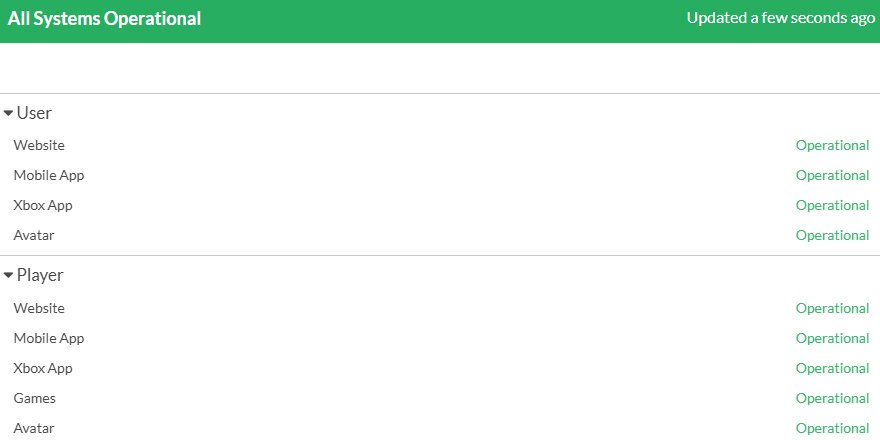
A service issue may explain why your avatar is:
- Not appearing at all
- Stuck while loading
- Showing incorrectly
- Reverting to a default appearance
- Failing to display recent changes
If the Roblox status page shows an incident affecting relevant services, the sensible approach is to wait for the service to recover.
If Roblox is having broader problems while other websites and apps work normally, the issue is less likely to be your home network. Do not keep changing device settings. Once the affected service is restored, test your avatar again.
2. Restart Roblox
A full restart is simple, but it is worth trying before moving on to more involved troubleshooting. Closing Roblox and starting a fresh session gives the app another opportunity to retrieve your avatar data.
Try this:
- Close Roblox completely
- Make sure it is no longer running in the background if your device keeps apps active
- Open Roblox again
- Check your avatar before making additional changes
On mobile devices, you can close Roblox from the recent apps screen. Roblox’s own troubleshooting guidance also recommends closing and reopening the app for certain technical problems.
3. Check Your Internet Connection
Roblox needs to retrieve account and avatar-related information, so an unstable connection can interfere with loading.
This does not mean slow internet is automatically the cause. However, check your network when Roblox content behaves inconsistently. Start by seeing whether other websites or online services are also unusually slow.
You can also try:
- Restarting your router if your home connection appears unstable
- Moving closer to your Wi-Fi router
- Switching to another available network temporarily
- Testing Roblox on a mobile connection, if available
- Checking whether the problem disappears on another network
Roblox’s troubleshooting documentation recommends testing another internet connection for certain connection-related problems. If Roblox works normally after changing networks, the problem may be related to your original connection rather than your avatar itself.
4. Update Roblox
Roblox regularly releases updates, and the version installed on your device may not always be current. Check for an available Roblox update through the platform where you installed the app. The exact process depends on your device, so use the relevant official app store or update mechanism rather than following instructions intended for a different platform.
After installing an update:
- Open Roblox again
- Sign in if necessary
- Check your avatar
- Join an experience and see whether the character displays correctly
Roblox specifically identifies outdated application versions as a possible source of technical problems and recommends updating or reinstalling the application in certain circumstances. If Roblox is already up to date, no need to check for the same update.
5. Clear Your Cache
If Roblox shows old avatar information, fails to load certain website elements, or behaves differently after you change your avatar, clearing relevant temporary data may help.
For browser users, it is recommended to clear cache, temporary internet files, and also cookies when troubleshooting website-loading problems.
The safest approach is to use the cache-clearing options built into your browser or device rather than manually deleting unfamiliar system files.
Be aware that clearing website data can sign you out of websites, so make sure you still remember your login details before doing it.
After clearing the relevant cache:
- Restart the browser or app
- Sign in again if required
- Open your avatar page
- Check whether the avatar loads correctly
If nothing changes, the issue may not be related to cached data.
6. Try Roblox on another Device or Browser
This step is particularly useful because it helps you identify where the problem is happening.
For example, suppose your avatar looks normal when you access Roblox from another device but remains blank on your computer. That points toward a device, browser, app, or installation issue rather than immediately suggesting a problem with your account.
Try a different combination, such as:
- Roblox app instead of a browser
- Browser instead of the app
- Another computer
- Another supported mobile device
- Another internet connection, if possible
If the avatar works elsewhere, you have narrowed the problem down considerably. Focus your next troubleshooting steps on the original device or application. If the avatar fails everywhere, the problem could be broader, such as an account-related issue, avatar configuration problem, or Roblox service issue.
7. Remove Recently Equipped Avatar Items
You may have equipped new clothing, accessories, body parts, or another avatar item and then noticed that the character no longer displays correctly. That timing does not prove the item caused the problem, but it makes the recent change worth investigating.
Use the Roblox Avatar Editor to remove recently equipped items and test a simpler setup. If your avatar displays normally, gradually add items back one by one to identify which specific item or combination may be causing the issue.
If your avatar suddenly returns to a default appearance, check your Roblox messages. An official avatar safety reset is one possible explanation, but loading or synchronization issues can also cause an avatar to appear incorrectly. If Roblox shows an avatar reset notification, follow the instructions in that message and use the Avatar Editor to customize your avatar again.
A default-looking avatar can have several explanations, including loading problems, synchronization issues, configuration changes, or an official avatar reset.
8. Rejoin Roblox or Refresh Your Avatar
If you recently changed your avatar but the old appearance still shows in an experience, Roblox needs to load the updated information.
Start by leaving the current Roblox experience, then:
- Close Roblox if necessary.
- Reopen the app or website.
- Check your avatar again.
- Rejoin the experience.
- See whether your updated character appears.
Roblox has also documented cases where an avatar may display incorrectly or as a grey X because of a problem generating its avatar thumbnail. Its support guidance recommends using the Redraw option under the avatar image when available; the process can take several minutes.
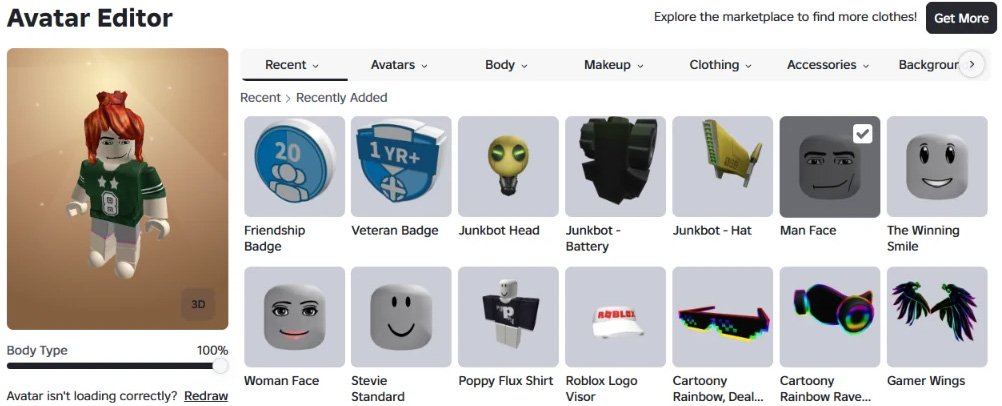
If your avatar looks like it is correct on your profile but appears incorrectly in one experience, the experience itself may be part of the problem. In that situation, repeatedly changing your account avatar may not solve it.
9. Wait and Try Again Later
Roblox relies on multiple services to deliver account information, assets, and avatar-related data. A temporary problem affecting those services can cause loading failures even when your device, connection, and account are working normally.
If you have already:
- Checked Roblox Status
- Restarted Roblox
- Tested your connection
- Updated the application
- Cleared relevant temporary data
- Tried another device or browser
- Checked recent avatar changes
Then waiting may be the most reasonable next step.
Do not create a new Roblox account or make major changes to your computer because an avatar is temporarily missing. The official Roblox status page is the best place to check for a confirmed service incident rather than relying on assumptions.
How to Tell Why Your Roblox Avatar Is Not Loading
The symptoms can provide clues about where to look next. They are not definitive diagnoses, but they can help you choose the most useful troubleshooting step.
| What You See | One Possible Cause |
| Avatar does not load anywhere. | Roblox service or account-related issue |
| Avatar works on another device. | Device, browser, or app issue |
| Avatar fails only in one experience. | Experience-specific problem |
| Avatar changed, but the old appearance remains. | Sync or cache issue |
| Roblox and other services are also slow. | Internet or network issue |
| Problem started after equipping an item. | Avatar configuration or item-related issue |
The goal is not to find a single guaranteed cause. It is to narrow down the possibilities without wasting time on unnecessary fixes.
When Should You Contact Roblox Support?
Consider contacting Roblox Support when the problem continues after you have worked through the reasonable troubleshooting steps.
Support may be appropriate if:
- Your avatar remains unavailable for an extended period
- The problem happens across multiple devices
- You encounter an account-related error
- Your avatar does not display correctly even after trying the available fixes
- You suspect there is an account-specific problem that cannot be resolved through normal troubleshooting
When contacting support, describe exactly what happens and include relevant error messages or troubleshooting steps you have already tried. Do not provide your Roblox password, authentication codes, or other account security credentials to someone claiming they need them to fix the issue.
If your issue concerns an official avatar safety reset, pay attention to the notification Roblox provides. Roblox states that automated avatar reset decisions may include a Report mistake option. It is separate from ordinary technical troubleshooting.
Frequently Asked Questions
Why is my Roblox avatar not loading?
A Roblox avatar may fail to load because of a temporary Roblox service problem, unstable connection, outdated application, cache issue, or avatar configuration problem. The quickest approach is to check Roblox Status first, then restart the app and work through the remaining troubleshooting steps.
Why is my Roblox avatar showing as a default avatar?
A default avatar can appear when Roblox cannot load the expected avatar information correctly. It may also happen after an avatar reset or configuration issue. If Roblox has reset your avatar for a Community Standards issue, the platform says you should receive an in-app notification explaining the reset.
Why is my Roblox avatar not updating?
If a recently changed avatar is not appearing, the new configuration may not have loaded or synchronized yet. Try reopening Roblox, checking the Avatar Editor, rejoining the experience, and using the Redraw option if it is available on your avatar page.
Can a Roblox outage cause my avatar not to load?
A Roblox service problem can affect the platform’s ability to load or display different types of data and assets. If other troubleshooting steps do not help, check the official Roblox Status page for an active incident before changing settings on your device.
What should I do if my Roblox avatar is still not loading?
Start again with the basics: check Roblox Status, restart Roblox, verify your internet connection, install available updates, clear relevant cache data, and test another device or browser.
Final Thoughts
The problem of Roblox avatar not loading itself can look like an account failure, but there are explanations to consider. Connection problems, temporary service issues, outdated software, cached data, and recent avatar changes can all produce similar symptoms.
Start with Roblox Status and a simple restart, then check the connection, update, cache, device, and avatar-item checks. If the issue is caused by Roblox itself, waiting may be all that is necessary. If your avatar remains unavailable after reasonable troubleshooting, Roblox Support is the appropriate next step.