 Posted by
 If your Robux are not showing up after a purchase, don’t assume they are gone right away. In some cases, the balance may take time to update or the transaction may still be processing. Other issues can involve account synchronization, the platform used to make the purchase, an outdated app or browser, payment problems, or a temporary issue with Roblox services.
The first step is to identify where the problem occurred before trying more advanced troubleshooting. Checking the account, transaction status, payment, and Robux balance can help narrow down the cause without making unnecessary changes.
In this guide, you’ll find practical steps to troubleshoot Robux not showing up after purchase, starting with simple checks and moving toward more specific actions. If the Robux still do not appear after completing these steps, we’ll also cover when and how to contact Roblox Support.
Why Are My Robux Not Showing Up?
If your Robux are not showing up after a purchase, the issue may involve the transaction, account, payment method, platform, or a temporary Roblox service problem. Before assuming your Robux are permanently missing, check these common possibilities.
The Robux Purchase Is Still Processing
A transaction may still be processing before the Robux are added to your balance. Check the transaction status first and avoid purchasing the same Robux package again.
Roblox Has Not Updated Your Robux Balance
Your balance may not have refreshed correctly. Reopening Roblox, refreshing the page, or signing in again can help determine whether the displayed balance is simply outdated.
The Purchase Was Made Through a Different Platform
Roblox purchases can be made through different platforms. Make sure you are checking the same Roblox account used for the original purchase, especially if you use multiple accounts or devices.
Payment Was Not Fully Completed
A payment may appear successful while still being pending or incomplete. Check your payment and transaction status before assuming the Robux purchase failed or buying again.
Roblox Is Experiencing a Service Problem
Temporary Roblox outages or service issues can affect account information and purchases. Check the official Roblox Status page to see whether a relevant service is currently experiencing problems.
How to Fix Robux Not Showing Up in Roblox
Once you know what might be causing the issue, work through the following checks in order. Start with the simplest steps before changing payment settings or contacting support.
1. Check Your Robux Balance Again
Start by checking the Robux balance on the account where the purchase was made. On the Roblox mobile app, sign in to the correct account and check the Robux balance shown in the app. On the Roblox website, your balance appears in the upper-right corner.
The important part is making sure you are checking the same Roblox account used for the purchase. If you have more than one account, it is easy to mistake the wrong account for the one that made the transaction.
Do not enter your Roblox password or payment information into third-party websites that claim they can check or recover missing Robux.
2. Refresh Roblox and Sign In Again
If your balance has not changed, refresh your Roblox session before trying anything more complicated.
- Close Roblox completely.
- Open Roblox again.
- Log out if necessary.
- Sign back into the account used for the purchase.
- Check the Robux balance again.
A fresh login can help when the information displayed by the app or browser has not updated correctly.
3. Check Your Purchase or Transaction History
If the Robux balance still looks wrong, check your transaction history. This can help you determine whether the purchase is recorded on the account.
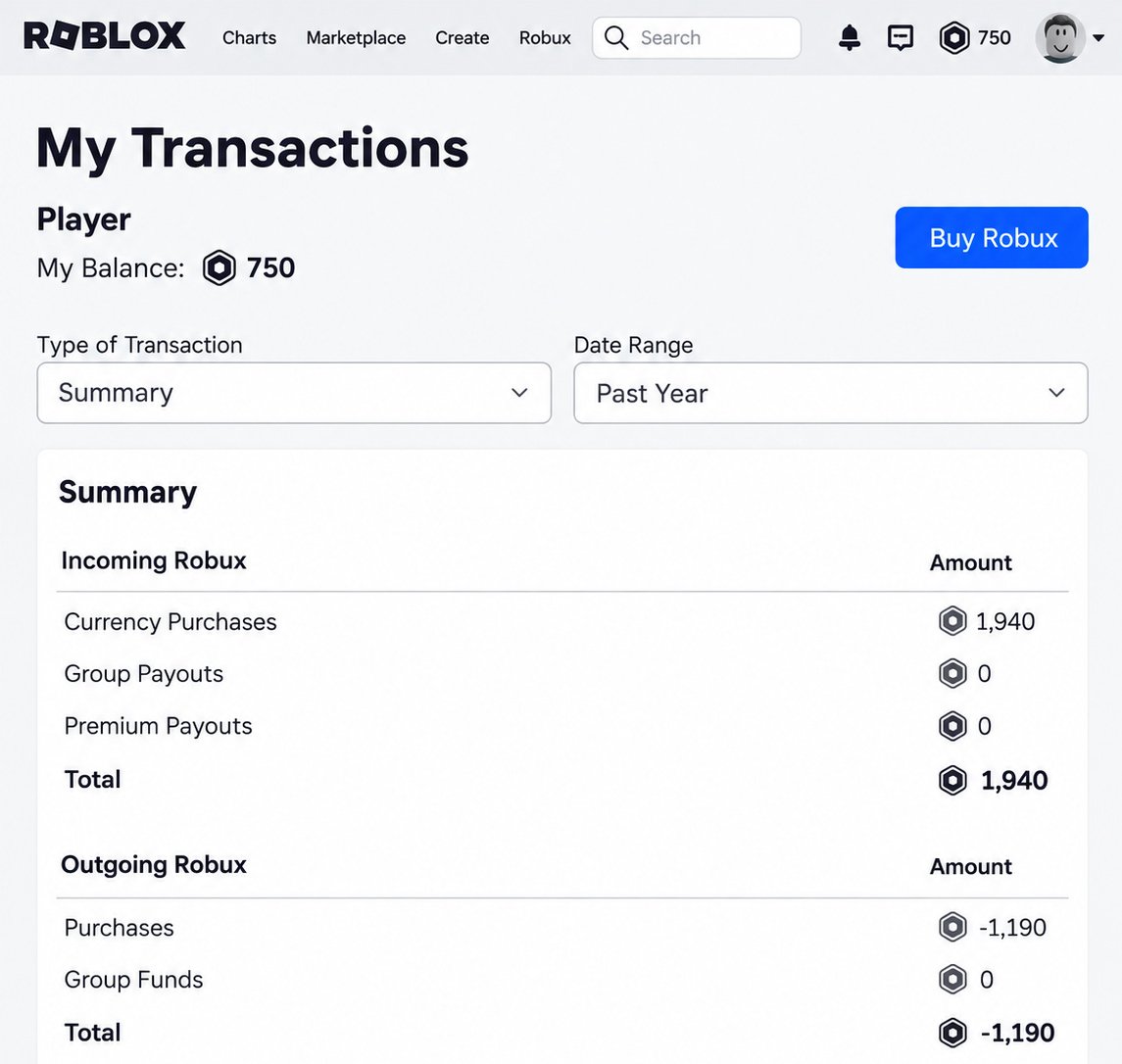
On the Roblox website, sign in and select the Robux icon in the upper-right corner, then select your Robux amount to open My Transactions. Roblox provides different transaction filters, including Currency Purchases, which can be used to review Robux spending history.
4. Check Your Payment Status
Next, confirm what happened to the payment itself. Depending on the payment method, a transaction may be:
- Failed
- Still pending
- Canceled
- Completed, while the purchased Robux have not yet appeared
A payment notification from your bank, card provider, or payment platform does not automatically mean that the Robux have already been credited to your Roblox account.
If the Robux purchase is not showing, do not immediately purchase the same package again. First establish whether the original transaction was completed. This reduces the risk of making a duplicate purchase while the first one is still being processed.
5. Try Roblox on Another Device or Browser
If everything looks correct but your balance still appears unchanged, try accessing Roblox somewhere else.
For example, you can:
- Open Roblox through a different web browser.
- Check the account through the Roblox app.
- Sign in on another supported device.
The purpose is not to make the Robux appear automatically, but to determine whether the problem is limited to one app, browser, or device. If your balance looks correct elsewhere, the issue may be related to the original environment rather than the purchase itself.
6. Clear Your Browser Cache and Cookies
If you are checking Roblox through a web browser and the account information continues to look outdated, clearing cached browser data may be worth trying.
You generally need to open your browser’s privacy or history settings and choose the option for clearing cached files and cookies. The exact menu names differ between browsers, so there is no need to change other browser settings unnecessarily.
7. Check Roblox Service Status
The issue may be on Roblox’s side rather than with your account or payment. Roblox provides an official status page that reports the condition of its major services.
Check the official Roblox Status page before taking further action. If the relevant services are experiencing an incident, purchase-related information or account data may not behave normally until the problem is resolved.
Do not assume that Roblox is experiencing an outage just because your Robux are missing. Use the official status information to determine whether there is a reported service problem.
8. Wait if the Transaction Is Still Processing
If your transaction has not fully completed, you may need to give it additional time before the Robux appear. There is no universal waiting period that should be applied to every purchase, because the situation can depend on the transaction and payment method.
While the transaction is still being processed, avoid buying the same Robux package again. A second purchase will not necessarily speed up the first transaction and could result in duplicate charges if both transactions are completed.
9. Check That You Purchased Robux on the Correct Roblox Account
This step is especially important if you use multiple Roblox accounts.
Think back to the account that was signed in when you made the purchase. Then compare it with the account currently open on your device. Roblox specifically advises users to make sure they are logged into the account where the purchase was made when a purchased product cannot be found.
You can also compare the username displayed on the account with the one you normally use for purchases. If the purchase was made on another account, the Robux will not appear in the balance of the account you are currently checking.
10. Contact Roblox Support
If the purchase was completed, you are checking the correct account, the transaction information looks valid, and the Robux still have not been added, it may be time to contact Roblox Support.
When submitting a request, prepare relevant details that can help Roblox investigate the transaction, such as:
- Your Roblox username
- The date of the purchase
- The platform or device used
- The Robux package or product purchased
- Relevant transaction details
- Proof of payment or a purchase receipt if Roblox requests it
Roblox’s support guidance for missing purchased products also asks users to provide purchase details and may request a copy or screenshot of the purchase receipt after the support request is received.
Only provide payment information through the official Roblox Support process when requested. Never post receipts containing sensitive payment details publicly or send your password, security codes, or full payment credentials to another person or third-party website.
What If I Was Charged but Didn’t Receive Robux?
If you were charged for Robux but did not receive them, first determine whether the payment was actually completed. A completed payment with no Robux received is different from a transaction that is still pending or failed. If you want to check the current price of different Robux packages, see our guide to How Much Does Robux Cost?.
If a Robux purchase is pending, check the payment status before taking further action, as the payment may not yet be finalized.
If Robux are missing after purchase, ensure the correct Roblox account was used, check your transaction history, refresh your session, and review the purchase details.
If the completed purchase still does not result in Robux after reasonable troubleshooting, contact Roblox Support through its official support channel and provide the relevant transaction details.
What If Robux Are Missing After Redeeming a Gift Card?
If you redeemed a Roblox Gift Card but the expected credit or Robux do not appear, the issue may involve the gift card redemption or the Roblox account used. First, make sure the gift card was successfully redeemed on the correct Roblox account.
If the redemption was successful but the expected credit or Robux balance does not appear, check your account balance again and review the relevant transaction information. Avoid attempting to redeem the same code repeatedly.
If the gift card itself cannot be redeemed, the issue may require separate troubleshooting and is outside the scope of a direct Robux purchase problem. For a successful redemption where the expected balance or credit is still missing, contact Roblox Support through its official support channel and provide the relevant redemption details.
When Should You Contact Roblox Support?
You should consider contacting Roblox Support when basic troubleshooting no longer explains why your Robux are missing. This is especially important if your payment was completed but the Robux have not been received, the transaction appears in your history but your balance has not changed, or the problem continues after signing out and signing back in.
Support is also appropriate if the same issue occurs across different browsers or devices, or if you see transaction details that you cannot explain. Account or purchase issues that require access to transaction records may also need assistance from Roblox.
Frequently Asked Questions
Why are my Robux not showing up?
Your transaction may still be processing, your balance may not have refreshed, you may be checking the wrong account, or the purchase may have an issue.
How long does it take for purchased Robux to show up?
There is no single timeframe for every purchase. Check the transaction status and platform used before taking further action.
Why did I get charged but not receive Robux?
The transaction may still be processing or may have encountered an issue. Check your purchase and payment status, then contact Roblox Support if needed.
Why are my Robux not showing after I bought them?
Check your account, transaction history, payment status, and Roblox session. Also check the Roblox service status.
Can I buy Robux again if my first purchase hasn’t appeared?
It is better not to purchase again until you know what happened to the first transaction.
What should I do if my Robux are still missing?
If the completed transaction still has not credited your Robux after troubleshooting, contact Roblox Support.
Final Takeaway
If your Robux are not showing up, it does not necessarily mean they are permanently gone. The issue may involve the account, transaction status, payment, device, or Roblox services.
Start with the simplest checks: make sure you are using the correct Roblox account and check your Robux balance again. Then review the purchase or transaction status and confirm that the payment was successfully completed.
Refresh Roblox or sign in again, then try another browser or device if necessary. You can also check the official Roblox service status for ongoing issues.
If the transaction was successfully completed but your Robux still do not appear after these steps, contact Roblox Support with the relevant purchase details for further assistance.