 Posted by
 If Roblox can’t log in, the problem may not always be caused by your account credentials. Roblox login problems can happen for several reasons, including an incorrect username or password, an unstable internet connection, browser issues, outdated cache, or problems with CAPTCHA and other verification steps.
This guide walks you through the most common causes of Roblox login not working, starting with simple checks before moving on to browser or app troubleshooting, verification problems, password recovery, and Roblox service status.
Why Can’t I Log In to Roblox?
When Roblox can’t log in, the cause can range from an account credential issue to a temporary technical problem. Common causes include:
- Incorrect username, email, or password: A typo or outdated password can prevent sign-in.
- Browser problems: An outdated or malfunctioning browser may interfere with the Roblox login page.
- Corrupted cache or cookies: Stored browser data can sometimes cause the sign-in process to behave unexpectedly.
- CAPTCHA or verification problems: CAPTCHA may fail to load or complete correctly.
- Internet connection issues: An unstable or restricted connection can prevent Roblox from communicating with its servers.
- Roblox app problems: An outdated or malfunctioning app may cause login failures.
- Incorrect device date and time: Incorrect system settings can interfere with secure connections.
- Temporary Roblox service problems: If Roblox is experiencing an outage or service disruption, login may fail even when your account and device are working normally.
Identifying the likely cause helps you choose the right troubleshooting step instead of trying random fixes.
How to Fix Roblox Can’t Log In Problems
If you are having trouble logging in to Roblox, here are some possible causes and ways to recover your account:
1. Check Your Username, Email, and Password
If Roblox can’t log in, start by checking whether your login credentials are correct. A simple typo, an incorrect email address, or an old password can cause a Roblox login failed message.
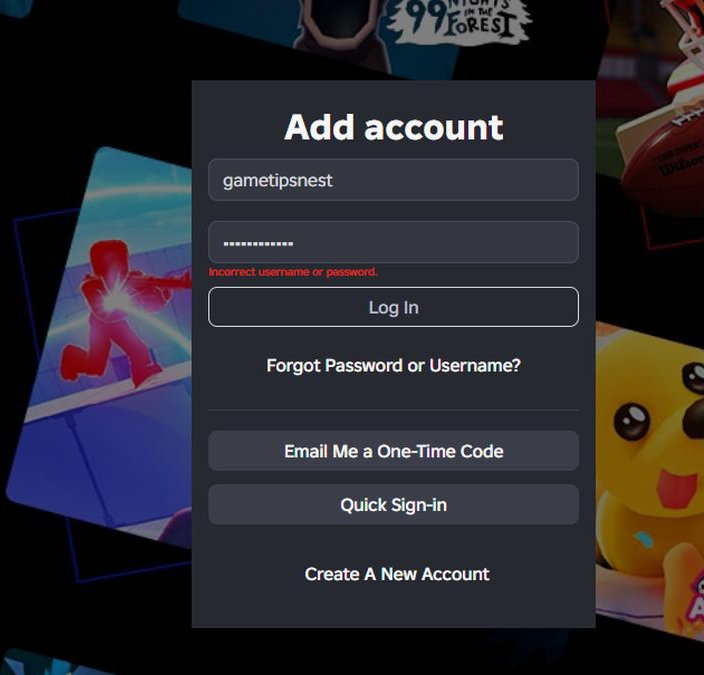
- Check the username or email address you normally use to sign in. Ensure there are no typos, extra spaces, or missing characters.
- Check your password carefully. Passwords are case-sensitive, so verify that Caps Lock is not affecting what you enter.
- Avoid repeated attempts if you’re unsure. Instead of repeatedly entering different passwords, use Roblox’s official password recovery option if you cannot remember the correct one.
- Try signing in again once you’ve confirmed the information.
Never share your password, verification codes, or other sensitive account information with another person, even if they claim they can help restore your account.
If your credentials are correct but you still can’t sign into Roblox, continue with the next troubleshooting step rather than repeatedly attempting to log in.
2. Check Your Internet Connection
An unstable internet connection can cause issues when logging into Roblox, especially if the login process keeps loading, fails to complete, or displays a login error.
Try these simple checks:
- Make sure your device is connected to Wi-Fi or mobile data and that the connection is working normally.
- If other websites also load slowly or fail to open, the problem may be with your internet connection rather than Roblox.
- If your internet seems unstable, restart your router and wait a moment before trying Roblox again.
- If possible, switch to a different Wi-Fi network or mobile hotspot.
If Roblox works normally after switching networks, your original connection may be the source of the problem. If you still cannot log in, move on to the next troubleshooting step.
3. Try Logging In From Another Browser
If the problem persists after switching your internet connection, the browser is one possible cause. Browser settings, extensions, or temporary glitches can sometimes interfere with the Roblox login process.
Try logging in through another commonly used browser, such as Chrome, Microsoft Edge, Firefox, or Safari.
If you can log in successfully from another browser, your Roblox account is likely accessible, and the issue may be related to the original browser.
4. Clear Your Browser Cache and Cookies
If you still can’t log into Roblox, outdated or corrupted browser data may be interfering with the sign-in process. Cache and cookies help websites remember information, but problems with stored data can sometimes cause pages or login sessions to behave unexpectedly.
Try clearing the browser data and then sign in again:
- Open your browser settings and look for an option such as Privacy, Security, or Clear browsing data.
- Select cached files or images and remove them.
- Select cookies or site data as well. This may sign you out of websites, so make sure you know your login details before continuing.
- Close and reopen the browser.
- Visit the Roblox website and try signing in again.
If clearing the cache and cookies fixes the problem, the issue was likely related to stored browser data. If the Roblox sign in not working problem continues, move to the next step.
5. Disable Browser Extensions Temporarily
Some browser extensions can interfere with the Roblox website or prevent certain page elements from working correctly. This can happen with ad blockers, privacy extensions, or script-blocking tools.
To determine if an extension is the source of the problem, follow these steps:
- Open your browser’s extension settings.
- Temporarily disable extensions that can block ads, scripts, trackers, or website content.
- Return to the Roblox login page and try signing in again.
- If you can log in, re-enable your extensions one at a time to identify which one was causing the problem.
You do not need to permanently remove an extension just to perform this test. If disabling extensions does not change the Roblox login issue, turn them back on and continue to the next step.
6. Check Roblox CAPTCHA or Verification Problems
CAPTCHA or another verification step can sometimes prevent the sign-in process from completing. For example, the CAPTCHA may not appear, may fail to load, or may keep asking you to verify.
Try these steps:
- Refresh the Roblox login page and try the verification again.
- Check your browser settings to make sure important page elements are not being blocked.
- Try another browser to see whether the verification works there.
- Check your internet connection, since an unstable connection can interrupt the verification process.
- If everything appears normal but verification still fails, wait and try again later. A temporary service issue can sometimes affect verification.
Do not attempt to bypass CAPTCHA or disable security checks. If verification continues to fail, move on to the next troubleshooting step.
7. Check Your Device’s Date and Time
An incorrect date or time on your device can sometimes interfere with secure connections and authentication. If your clock or time zone is significantly out of sync, this may contribute to a Roblox login error.
The simplest solution is to enable automatic date and time settings:
- Windows: Open Date & Time settings and enable the option to set the time automatically.
- Android: Open Date & Time settings and enable automatic date and time.
- iPhone: Go to Settings > General > Date & Time and turn on Set Automatically.
After adjusting the setting, restart the browser or Roblox app and try signing in again.
8. Try the Roblox App or Website
If Roblox won’t let me log in through one platform, try the other. This helps determine whether the problem is specific to the website, browser, or Roblox app.
- If you cannot sign in through the Roblox website, try the Roblox app.
- If the Roblox app is not working, try signing in through the official Roblox website using a browser.
If one method works while the other does not, the problem is more likely related to that particular platform. You can then focus on troubleshooting the affected browser or app instead of changing your account settings unnecessarily.
9. Check Whether Roblox Is Down
Sometimes, login issues on Roblox are caused by a temporary service disruption rather than a problem with your device or account. If Roblox is experiencing a service outage, the login process and other features may not work as expected for some users.
Check the official Roblox Status Page to see whether Roblox services are operational or whether an incident has been reported. The status page covers services including the Roblox website and mobile app.
You can also check whether other Roblox users are reporting similar problems. However, the official status page should be your main reference when determining whether there is a known service disruption.
10. Reset Your Roblox Password
If you have truly forgotten your password or it is no longer working, use the official Roblox account recovery feature instead of repeatedly trying different passwords.
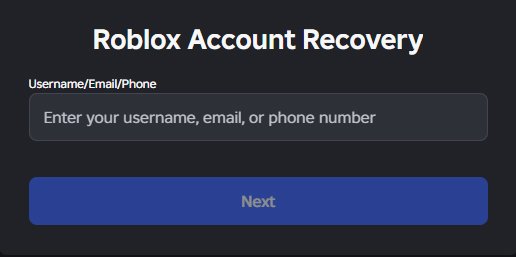
Roblox states that users who have not added an email address or phone number may not be able to reset their password using this feature and might need to contact Roblox Support for assistance with account recovery.
Never share your password, recovery code, or other sensitive account information with anyone claiming they can recover your account.
What to Do If Roblox Still Won’t Let You Log In
If you have tried the troubleshooting steps above and Roblox still won’t let you log in, avoid making repeated changes to your account or device without knowing what is causing the problem.
First, wait and try again after some time. A temporary Roblox service problem may resolve itself without any action on your side. Before trying again, check the official Roblox Status page to make sure there is no ongoing outage or service disruption.
If Roblox services are operating normally, review the earlier troubleshooting steps and make sure you have tested the problem on another browser, device, or platform where possible.
If the problem continues after these checks, contact official Roblox Support.
When Should You Contact Roblox Support?
You should consider contacting Roblox Support when you have tried the appropriate troubleshooting steps but still cannot access your account. Support may be particularly useful in situations such as:
- Password recovery does not work or you cannot complete the recovery process.
- You cannot access your account even after confirming your login information.
- The same login problem continues across different browsers, devices, or the Roblox app.
- You have an account access problem that cannot be resolved through Roblox’s available recovery options.
Before contacting support, make sure you provide the correct account information and describe the login problem as clearly as possible. Avoid sending unnecessary sensitive information.
Frequently Asked Questions
Why can’t I log into Roblox?
Common causes include an incorrect password, unstable internet, browser problems, CAPTCHA issues, or a temporary Roblox service disruption.
Why is Roblox login not working?
Check your login details, internet connection, browser cache and cookies, and browser extensions. You should also check Roblox’s service status.
Why won’t Roblox let me sign in?
The problem may be related to your password, browser, connection, CAPTCHA, Roblox app, or a temporary service issue.
Why can’t I log into Roblox even with the correct password?
Correct credentials do not always rule out technical problems. Try another browser, clear cache and cookies, check CAPTCHA, test your connection, or use the Roblox app or website.
How do I fix Roblox login problems?
Check your credentials and internet connection first. Then try another browser, clear browser data, disable extensions temporarily, check your device’s date and time, and check Roblox’s service status. If the problem continues, use official Roblox Support.
Final Takeaway
When Roblox can’t log in, start with the simplest checks before moving to more advanced troubleshooting. Confirm your login information, check your internet connection, and try another browser.
If needed, clear your cache and cookies, check CAPTCHA, and make sure your device’s date and time are correct. You can also switch between the Roblox app and website to identify whether the problem is platform-specific.
If the Roblox login issue continues after these steps, contact official Roblox Support for help with account access. Avoid unofficial recovery services and never share sensitive account information with others.