
 Posted by
 Vanilla Tweaks is a collection of optional add-ons for Minecraft that lets players personalize their game while keeping its original look and feel. Rather than overhauling the entire game, it offers small adjustments that can make certain activities more enjoyable, convenient, or visually appealing.
With vanilla tweaks, players can customize textures, change selected gameplay mechanics, and adjust crafting recipes to suit their playstyle. Resource packs focus on visual and audio changes, while data packs modify specific game behaviors. Crafting tweaks provide additional flexibility when working with recipes.
These options are useful for players who want a more personalized Minecraft experience without installing extensive gameplay modifications.
Key Takeaways:
- What is Vanilla Tweaks? A collection of optional Minecraft customizations that enhance the vanilla experience without replacing its core gameplay.
- Available categories: Resource packs, data packs, and crafting tweaks, each designed for different types of adjustments.
- What can you do with it? Customize visuals, simplify selected gameplay tasks, and modify supported crafting recipes.
- Where to download: Get the available packs directly from the official website.
- What to check before installing: Confirm your Minecraft edition and version, then verify that the selected pack supports your setup and follows the correct installation method.
What Is Vanilla Tweaks?
Vanilla Tweaks is a set of optional customizations for Minecraft that lets players adjust specific parts of the game without turning the experience into something completely different. The idea is simple: keep Minecraft recognizable while adding small changes that suit individual preferences.
Its options include resource packs, data packs, and crafting tweaks. Depending on the selected pack, players can alter visuals, adjust certain gameplay features, or change crafting-related behavior.
This makes Vanilla Tweaks different from traditional Minecraft mods, which can introduce much larger changes, new systems, or content.
Players can choose individual tweaks rather than installing everything at once. The official Vanilla Tweaks website is the primary place to browse available options, customize selections, and download the corresponding files.
What Types of Vanilla Tweaks Are Available?
Vanilla Tweaks is organized into several categories, but three are particularly relevant when you are deciding what kind of Minecraft customization. Each category affects the game differently, so understanding the distinction can help you avoid downloading something that does not match your goal.
Resource Packs
Resource Packs primarily change how Minecraft looks or sounds. Depending on the selected pack, they can adjust textures, models, interface elements, or audio. These changes are useful when you want a different presentation while keeping the underlying gameplay mechanics intact.
For example, a player may use a resource pack to make certain visual elements easier to recognize without changing how the game functions.
Data Packs
Data Packs operate closer to the gameplay systems. They can introduce selected changes to Minecraft’s existing mechanics or add specific functionality supported by the data-pack system.
This makes them suitable for players who want small gameplay adjustments rather than a complete modification of the game.
Crafting Tweaks
Crafting Tweaks concentrate specifically on crafting. They can provide alternative recipes or make certain crafting actions more convenient. This can be useful in survival worlds where a particular recipe or crafting process becomes repetitive.
The important distinction is that you can choose these categories independently. You do not need to install a complete collection to benefit from Vanilla Tweaks.
Best Vanilla Tweaks to Try
The right Vanilla Tweaks setup depends on the kind of Minecraft experience you want. Instead of installing a large collection, you can pick individual options that solve specific problems or add useful conveniences.
- Coordinates HUD — Data Pack: Displays your current coordinates during gameplay. This is handy for navigation, documenting build locations, and returning to specific areas without opening the debug screen.
- Fast Leaf Decay — Data Pack: Makes leaves disappear more quickly after a tree is cut down. It can save time when harvesting wood or clearing an area.
- Double Shulker Shells — Data Pack: Increases the number of shulker shells obtained from eligible drops, helping players who need additional shulker boxes for large storage setups.
- Dark UI — Resource Pack: Gives Minecraft’s interface a darker appearance. This changes the presentation rather than introducing a new gameplay mechanic.
- Dropper to Dispenser — Crafting Tweak: Adds an alternative crafting recipe involving droppers and dispensers, which can be convenient for players who frequently build redstone systems.
Because Vanilla Tweaks updates its available options and version support, verify the selected pack’s current compatibility on the official website before installing it.
Practical Tweak Selection Table
Choosing Vanilla Tweaks is easier when you start with the result you want rather than searching for the largest collection of packs. The official website currently separates its options into Resource Packs, Data Packs, and Crafting Tweaks, with a Minecraft version selector for each category.
Swipe left to see more →
| Tweak / Category | What It Does | Best For | Platform / Version |
|---|---|---|---|
| Fast Leaf Decay / Data Pack | Speeds up leaf decay after trees are harvested | Survival players who gather lots of wood | Check the Data Pack selector for your Minecraft version |
| Double Shulker Shells / Data Pack | Makes shulkers drop two shells | Players who need more shulker boxes for storage | Check the Data Pack selector for your Minecraft version |
| Dropper to Dispenser / Crafting Tweak | Adds an alternative recipe for converting a dropper into a dispenser | Redstone builders and technical players | Check the Crafting Tweak selector for your Minecraft version |
The official Vanilla Tweaks selectors are version-specific, so the safest approach is to select your exact Minecraft version before downloading.
The current site lists different supported versions for each category rather than treating every tweak as universally compatible.
How to Choose the Right Vanilla Tweaks
Picking the right Vanilla Tweaks comes down to a few key factors to keep your game running smoothly. First, figure out exactly what type of tweak you’re looking for and whether it’s purely a visual upgrade or something that actively impacts your gameplay.
You’ll also want to consider the overall gameplay impact and double-check compatibility with other tweaks to avoid any frustrating bugs or conflicts.
Skipping this step can cause compatibility problems or prevent a tweak from working correctly.
How to Download Vanilla Tweaks
Vanilla Tweaks provides its downloads through its own website, so there is no need to search for third-party mirrors. The download process is built around selecting the Minecraft version and then choosing the specific changes you want.
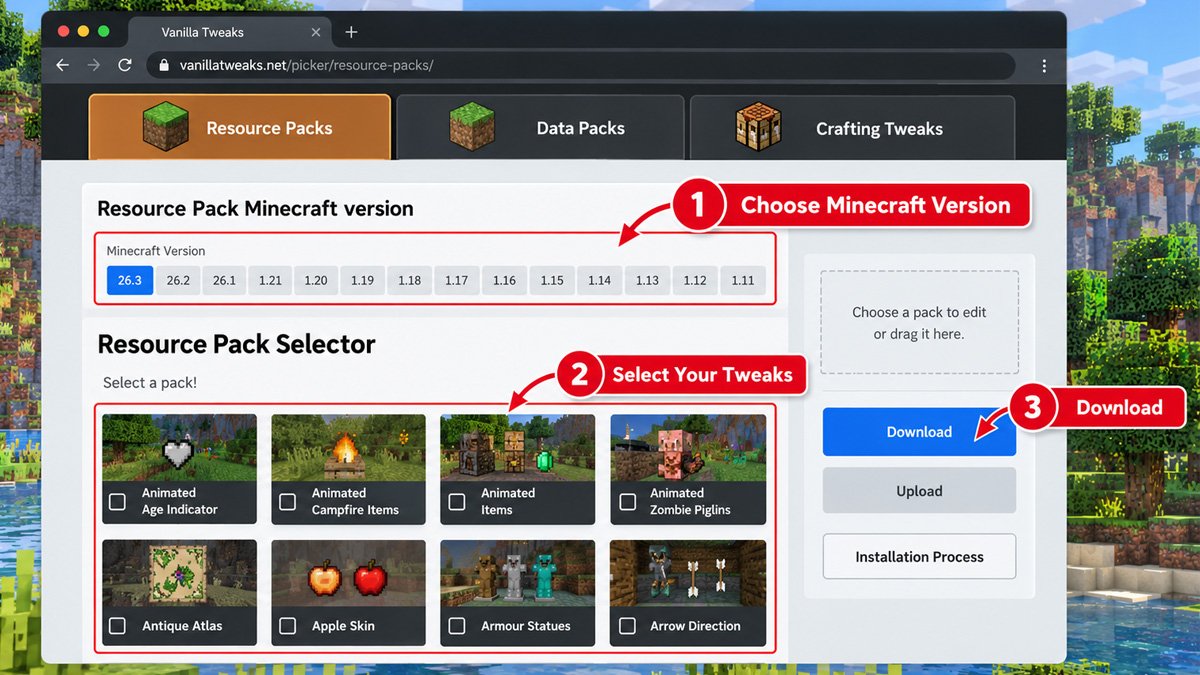
- Go to the official Vanilla Tweaks website. Open the Vanilla Tweaks site and access the appropriate picker for the type of customization you need.
- Select a category. Choose between Resource Packs, Data Packs, or Crafting Tweaks, depending on what you want to modify.
- Set your Minecraft version. Check the version selector and choose the version that matches the game installation where you plan to use the pack.
- Pick individual tweaks. Browse the available options and select only the changes you actually need. This keeps your setup easier to manage.
- Download your selection. After making your choices, use the site’s download option to obtain the generated pack.
Before moving on to installation, check the downloaded file and make sure it corresponds to the Minecraft version you selected. If you are combining multiple packs, also review any compatibility notes shown by Vanilla Tweaks.
How to Install Vanilla Tweaks
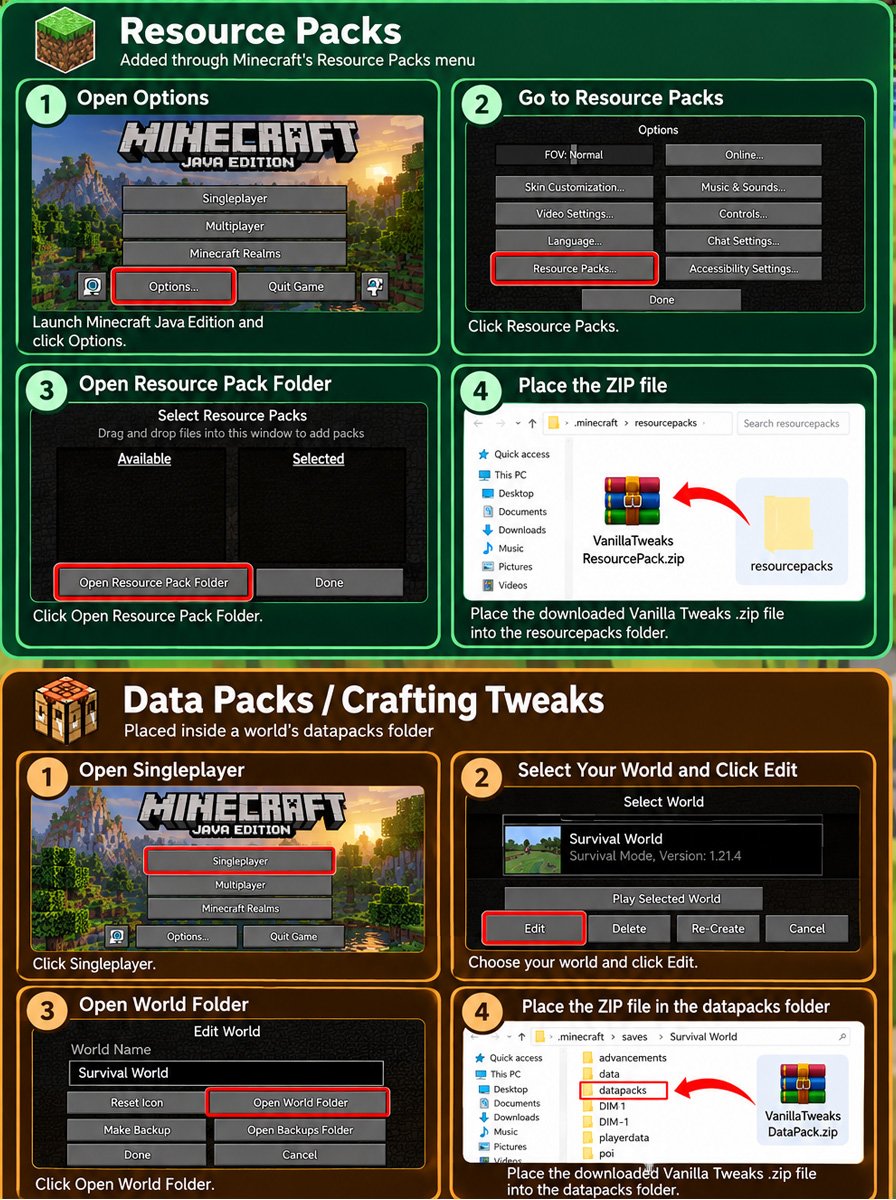
The installation method depends on the type of Vanilla Tweaks pack you downloaded. For the options covered here, follow the official Vanilla Tweaks installation instructions for Minecraft Java Edition.
Resource Packs are added through Minecraft’s Resource Packs menu, while Data Packs and Crafting Tweaks are placed inside a world’s datapacks folder.
Java Edition: Resource Packs
To activate a Vanilla Tweaks Resource Pack:
- Launch Minecraft Java Edition and open Options.
- Select Resource Packs.
- Click Open Pack Folder to open Minecraft’s resource-pack directory.
- Place the downloaded Vanilla Tweaks .zip file in that folder.
- Return to Minecraft and locate the pack under the available Resource Packs.
- Move it to the active-pack section and confirm the change.
The pack can then be used by the game without extracting the downloaded ZIP file.
Java Edition: Data Packs and Crafting Tweaks
These packs are installed for an individual Minecraft world:
- Open Singleplayer and select the relevant world.
- Choose Edit, then open the World Folder.
- Find the world’s datapacks directory.
- Place the downloaded pack in that folder.
- Follow Vanilla Tweaks’ instructions regarding extraction. Data Pack downloads may require the contents of the provided package to be extracted, while Crafting Tweaks have a different package structure.
- Start or return to the world. If necessary, use /reload to make Minecraft recognize the newly added Data Pack.
What About Bedrock Edition?
The official Vanilla Tweaks installation documentation does not provide an installation procedure suitable for Bedrock Edition. The documented workflow utilizes Java Edition’s Resource Pack system and the world-level datapacks folder.
Therefore, these instructions should not be applied to Bedrock, and Vanilla Tweaks downloads intended for Java should not be assumed to work directly in Bedrock.
How to Fix Vanilla Tweaks Not Working
If a Vanilla Tweaks pack does not appear or its changes are missing in-game, work through the basic checks below. Different pack types use different installation methods, so the troubleshooting process depends on what you installed.
Check the Minecraft Version
First, compare your current Minecraft version with the version selected when downloading the pack. Vanilla Tweaks provides version options in its pack selectors, so using a pack intended for another release can create compatibility problems.
Verify the Platform
The official Vanilla Tweaks installation instructions cover Minecraft Java Edition. Do not assume that a Java pack can be transferred directly to Bedrock Edition. If you are using another platform, verify its support on the official Vanilla Tweaks page before attempting alternative installation methods.
Check Resource Pack Activation
If you installed a Resource Pack, go to Options and Resource Packs and confirm that the pack is listed among the available or active packs. A ZIP file sitting in the correct folder will not necessarily mean that its changes are currently enabled.
Recheck Data Pack Placement
Data Packs and Crafting Tweaks belong in the world’s datapacks folder. Also check whether the downloaded package needs to be extracted according to Vanilla Tweaks’ instructions. An incorrect folder structure can prevent Minecraft from detecting the pack.
Look for Conflicting Packs
If you have several tweaks enabled, one pack may overlap with another. Vanilla Tweaks notes that pack order can determine which files take priority. Temporarily disabling another pack can help establish whether the two selections are interfering with each other.
Reload or Restart
For Data Packs, try /reload after installation if the world was already open.
If the problem remains, check the exact Minecraft version, pack category, selected tweak, and downloaded file. Those details are useful when checking the official Vanilla Tweaks documentation or reporting an issue.
Frequently Asked Questions
What exactly does Vanilla Tweaks add to Minecraft?
Vanilla Tweaks offers optional changes for Minecraft through Resource Packs, Data Packs, and Crafting Tweaks. Players can select individual additions instead of changing the entire game.
Is Vanilla Tweaks safe to use?
Download packs directly from the official Vanilla Tweaks website to avoid unnecessary third-party downloads. The official site also provides its own installation instructions and pack selectors.
Does Vanilla Tweaks cost anything?
No. Vanilla Tweaks is available free of charge. The project also provides an optional way for users to support its development.
Is Vanilla Tweaks considered a mod?
Not in the traditional Minecraft mod sense. Vanilla Tweaks uses Resource Packs, Data Packs, and Crafting Tweaks rather than requiring a conventional mod loader.
Where should Vanilla Tweaks files be installed?
It depends on the pack type. Resource Packs go through Minecraft’s Resource Pack system, while Data Packs and Crafting Tweaks are installed for individual worlds through the datapacks folder.
Will one Vanilla Tweaks download work on every Minecraft version?
You should not assume so. Always select your Minecraft version on the official Vanilla Tweaks picker before downloading, since available packs and compatibility can vary between releases.
Can several Vanilla Tweaks packs run together?
Yes, multiple compatible selections can be used together. However, overlapping packs may affect one another, particularly when their files modify the same content.
Can I use Vanilla Tweaks on Bedrock Edition?
The official installation documentation does not provide a general Bedrock installation method for the Vanilla Tweaks packs covered here. Its documented workflow is based on Java Edition, so Java packs should not automatically be treated as Bedrock-compatible.