 Posted by
 Roblox lets players trade or exchange eligible items directly with one another. So, instead of purchasing an item from the Marketplace, some items can be traded among players freely using the trade feature. You can offer items from your inventory and, when allowed, add Robux to make the deal more suitable for both sides.
This guide explains how to trade items on Roblox, from preparing your account and finding eligible items to sending offers, responding to trades, checking completed transactions, and avoiding scams.
What Is Trading on Roblox?
Roblox trading is a player-to-player exchange handled through Roblox’s built-in Trade feature. Instead of purchasing an item from the Marketplace, you select something you own and offer it to another player in exchange for one or more eligible items from their inventory.
Robux can also be included as part of an eligible trade. However, Roblox applies specific rules to Robux included in trade offers, including a transaction fee and a limit on how much Robux can be added. Everything should stay inside Roblox’s official trading system.
What Items Can You Trade on Roblox?
According to the current Roblox Support documentation, the official trading system supports Roblox-created Limited and Limited U items. Robux can also be included in a trade when the applicable rules are met.
What Is a Limited Item?
A Limited is a collectible avatar item that was originally sold normally and later taken off sale. Once it is no longer available for regular purchase, players can acquire it through methods such as buying from another player or trading.
A Limited U, short for Limited Unique, is also a collectible item, but it is released in a fixed number of copies. Each copy has its own serial number.
You can identify these items by looking for the Limited or Limited U label on the item’s Marketplace or details page.
How Do You Know If an Item Is Tradable?
To know the item is tradable or not, try to open the item’s information details and see Tradable field. Roblox states that a value of Yes indicates that the item can be traded. It prevents you from planning an offer around an item that cannot actually enter the Roblox trading system.
Roblox Trading Requirements
Roblox’s current Support page states that both players need an active Roblox Plus subscription, trading and inventory visibility must be enabled, and the users must be in a supported region. Because Roblox can change subscription benefits and eligibility, check the latest Roblox Support information if your account does not show the trading option.
Check Your Trading Settings
Roblox currently directs users to:
Account Settings → Privacy & content restrictions → Trading & inventory
Roblox’s support documentation explains that you can control who can view your inventory through these settings. If the Trade Items option is missing from another player’s profile, do not immediately assume the feature is broken. One or both accounts may not satisfy the current requirements.
How to Enable Trading on Roblox
Before attempting your first Roblox trade, prepare your account:
- Open your Roblox account settings.
- Go to Privacy & content restrictions.
- Open Trading & inventory.
- Check your inventory visibility settings.
- Make sure trading is enabled.
- Confirm that your account and region meet Roblox’s current trading requirements.
The exact appearance of Roblox’s interface can change over time, so use the current menu labels shown in your account rather than following screenshots from old trading guides. Roblox introduced Roblox Plus in 2026, and its current documentation identifies Plus as the subscription associated with unlimited trading. Legacy Premium information may no longer describe how new subscriptions work.
How to Trade Items on Roblox
Once your account is ready and you have an eligible item, you can create a trade offer.
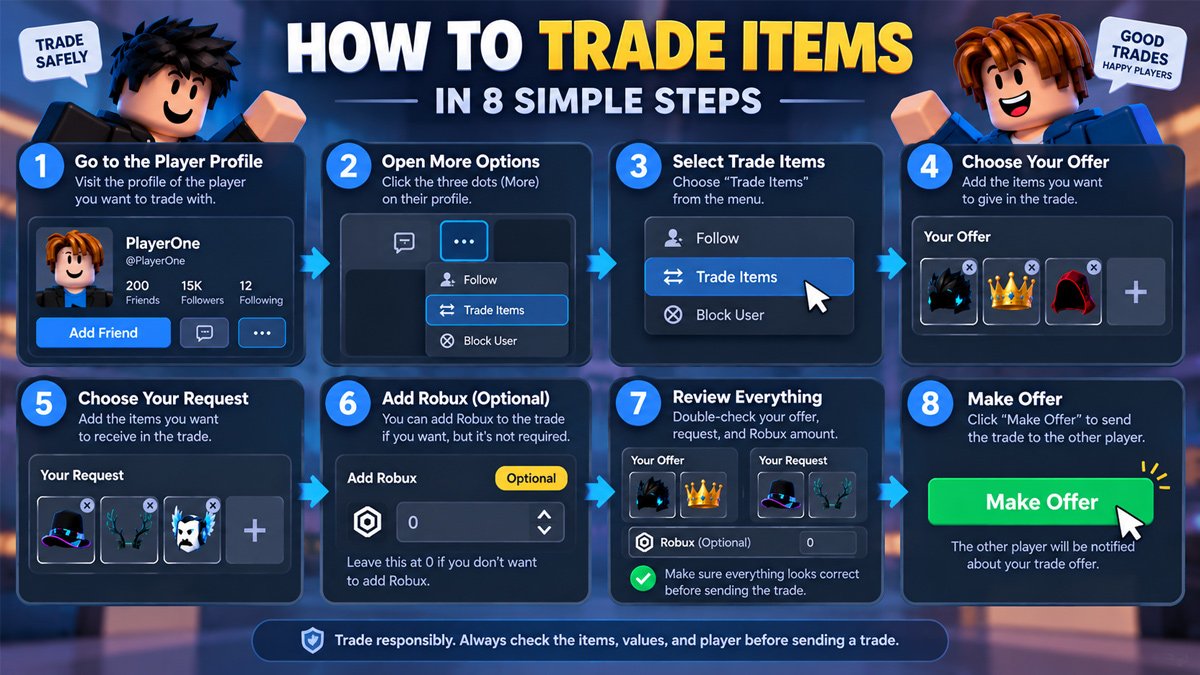
Step 1: Open the Other Player’s Profile
Find the Roblox player you want to trade with and open their profile. This sounds obvious, but checking the username before building a trade can save you from sending an offer to the wrong person.
Step 2: Open the More Menu
On the player’s profile, look for the More button represented by the three-dot menu. Select it to see the available actions.
Step 3: Select Trade Items
The trading option depends on account eligibility rather than simply being friends with the other player. Roblox’s current instructions identify the profile’s more menu as the starting point for creating a trade.
Step 4: Choose What You Want to Offer
The trade window contains a section called Your Offer. Select the item or items you are willing to give to the other player. Check the item’s name and details before moving forward, particularly if you own several similar collectibles.
Step 5: Choose What You Want to Receive
Next, use Your Request to select the item or items you want from the other player. This is where you should compare the complete offer rather than focusing on just one item. A trade can contain multiple items on both sides, so consider everything being exchanged.
Step 6: Add Robux If Appropriate
Robux can be added to a trade under Roblox’s trading rules. Roblox currently states that there is a 30% fee of Robux included in a trade after the offer is accepted. The maximum allowable Robux add-on is 50% of the offered items’ total value, calculated under Roblox’s stated rule after the fee. Understand what the trade window is showing before submitting the offer.
Step 7: Review Everything
This is the most important step before sending a trade.
- The exact items you are giving
- The exact items you are requesting
- The amount of Robux included
- Whether every item is the one you intended to select
- Whether the overall exchange makes sense to you
Do not rush because another player says the offer will disappear or claims you need to accept immediately.
Step 8: Send the Trade
When everything looks correct, select Make Offer. Roblox will send the trade to the other player, who can then accept it, decline it, or send a counteroffer.
Remember that completed trades are final. Roblox states that a completed trade cannot be reversed, refunded, or disputed through the platform.
How to Accept, Decline, or Counter a Roblox Trade
Receiving a trade does not mean you have to accept it.
Accept
Choose Accept when you are satisfied with the offer exactly as it appears. Before accepting, review the complete trade one more time.
Decline
Select Decline when you do not want the trade. If the exchange does not make sense for you, declining is enough.
Counter
Use Counter when you are interested in the trade but want to change its terms. A counteroffer allows you to adjust the items involved and submit a revised proposal. The other player can then review your new offer.
How to Check Your Roblox Trades
You can manage your trade history through Roblox’s Trade section which identifies four trade categories:
- Received – offers other players have sent you
- Sent – offers you have sent
- Completed – trades that have finished
- Closed – trades that expired or were declined
Checking these categories is useful if you have multiple offers open at once. It also makes it easier to distinguish an active offer from a trade that has already been completed or closed.
Can You Add Robux to a Roblox Trade?
Robux can be included in an eligible trade. However, Roblox currently applies a 30% transaction fee to Robux included in an accepted trade. There is also a cap on how much Robux you can add relative to the value of the items you are offering.
If the Robux option is unavailable or the amount you want to add is rejected, do not try to work around the restriction through an outside deal. Keep the transaction inside Roblox’s official features.
How to Tell If a Roblox Trade Is Worth It
You do not need an advanced trading strategy to make a more careful decision. Start with a simple checklist.
Do you actually want the item?
A trade does not become useful simply because one item appears popular. If you would never use or keep what you receive, consider why you are making the exchange.
Have you checked the exact item?
Similar-looking Roblox items can have different names, editions, or availability. Confirm the item before accepting.
Is the offer heavily one-sided?
You do not need an advanced value spreadsheet to notice when you are giving several desirable items in exchange for something you barely want.
Have you considered the item’s current market context?
For Limited items, the Marketplace can provide useful information such as reseller listings and price charts. These figures can help provide context, but one price or value number should not automatically determine whether a trade is right for you.
Do you understand what you are giving up?
This is particularly important when trading an item you have owned for a long time. Once the trade is completed, Roblox says it cannot be reversed.
The goal is not to turn every trade into an investment calculation. For beginners, understanding the complete exchange is more important than chasing a theoretical profit.
Roblox Trading Safety Tips
Keep the entire transaction inside Roblox’s official system. Roblox specifically warns that it cannot enforce agreements made outside its official trading and selling features or restore items and Robux lost through those arrangements.
Avoid offers involving:
- Account trading or account selling
- Real-world money exchanged for Roblox items
- Random middlemen
- Requests for your password or account credentials
- Lending your account or items
- Deals that require you to send your item first
- Off-platform item exchanges
Someone may tell you that they will give you another item, Robux, or money after you send your item first. Once the item leaves your account through an arrangement outside the official system, Roblox cannot simply reverse the deal for you.
Roblox also provides a Trade Quality Filter that can hide lower-quality incoming offers. The current settings include None, Low, Medium, and High, allowing users to control the minimum quality of offers they receive.
Common Roblox Trading Mistakes
Keep these in mind before sending or accepting an offer:
- Trading without checking the item: Make sure the item is exactly what you think it is and confirm that it is tradable.
- Accepting too quickly: A message saying “accept now” is not a reason to skip your review.
- Ignoring the full trade: Look at every item and every Robux amount, not just the most valuable-looking part.
- Adding Robux without understanding the rules: Remember the current fee and Robux limit.
- Trusting off-platform promises: A promise is not the same as an official Roblox trade.
- Sharing account information: Never give another player your password or allow them to take control of your account.
- Assuming every item is tradable: Check the item’s Tradable field instead.
- Confusing selling with trading: Selling and trading are different Roblox systems. A sale allows another player to buy an eligible item, while a trade directly exchanges eligible items between players.
If you want to sell an eligible Limited item instead of trading it, see our guide on how to sell items on Roblox.
Frequently Asked Questions
Can you trade items on Roblox?
Roblox has an official trading system that allows eligible players to exchange Roblox-created Limited and Limited U items. Robux can also be included when the applicable requirements and limits are met.
What items can you trade on Roblox?
The current Roblox Support documentation lists Roblox-created Limited and Limited U items as tradable items.
Do you need a subscription to trade on Roblox?
Roblox currently states that an active Roblox Plus subscription is required for trading and provides unlimited trades. However, Roblox is also running a limited-time promotion allowing users in the United States to make up to two free trades per month without Plus.
How do you send a trade on Roblox?
Open the other player’s profile, select the three-dot More menu, choose Trade Items, build your offer and request, and select Make Offer.
Can you trade Robux on Roblox?
Robux can be added to an eligible item trade. Roblox currently applies a 30% fee to Robux included in an accepted trade and limits the amount that can be added based on the value of the items offered.
Final Thoughts
Learning how to trade items on Roblox is mostly about understanding the official system and slowing down before you commit to an offer. Make sure your account meets the current requirements, use eligible Limited or Limited U items, review every part of a trade, and understand how Robux fees and limits work.
Most importantly, keep trades inside Roblox’s official features. Roblox’s own guidance makes clear that transactions outside its official systems may not be recoverable. For more Roblox guides, check other GameTipsNest tutorials.