 Posted by
 The Roblox Marketplace is the place to find and purchase avatar items for your Roblox account. You can browse items by entering keywords, choosing categories, or using filters to narrow the results based on what you are looking for.
If you are new to the Marketplace, knowing where to start can make the process much easier. This guide explains how to use the Roblox Marketplace step by step, from opening the Marketplace and searching for items to using categories and filters, checking item details, trying items on your avatar, and completing a purchase.
What Is the Roblox Marketplace?
The Roblox Marketplace is a section of Roblox where users can browse and purchase items for avatar customization. It brings different types of avatar-related items together in one place, allowing you to search for something specific or browse available options.
Depending on the current Roblox interface, you may find items such as clothing, accessories, collectibles or Limited items, gear, and other types of avatar items.
The exact categories shown on the Marketplace are not necessarily permanent. Available categories and filters can change as Roblox updates the Marketplace.
To make browsing easier, the Marketplace includes search and filtering tools. You can enter a keyword to look for a specific item, then use the available categories or filters to narrow the results.
How to Open the Roblox Marketplace
You can access the Roblox Marketplace from both a computer and the Roblox mobile app.
Desktop / Web
On a desktop or laptop, sign in to your Roblox account and open the Roblox website. Look for Marketplace in the main navigation and select it. Roblox Support describes the Marketplace as being accessible from the navigation at the top of the page.
Once the Marketplace opens, you can browse the available items or use the Search box to look for a specific keyword or item title. You can also browse through the available categories and narrow the results with filters.
Mobile
The steps are slightly different depending on whether you are using a phone or tablet.
On a phone:
- Open the Roblox app and sign in.
- Tap More in the bottom-right corner.
- Tap Marketplace.
- Select a category or use the Search bar to find a specific item.
- Browse the results and select an item to view its details.
These steps are based on the current Roblox Support instructions for mobile phones.
On a tablet, Roblox Support currently indicates that you can tap the Marketplace button in the navigation bar at the bottom of the screen. From there, the Marketplace can be browsed similarly to the desktop version.
Roblox may change the Marketplace layout or navigation over time, so button names and locations can change. If you do not see the Marketplace in the location described above, check the current navigation options in your Roblox app or website.
How to Search for Items on Roblox Marketplace
Searching is one of the most useful features of the Roblox Marketplace, especially when you already have a particular avatar item in mind.
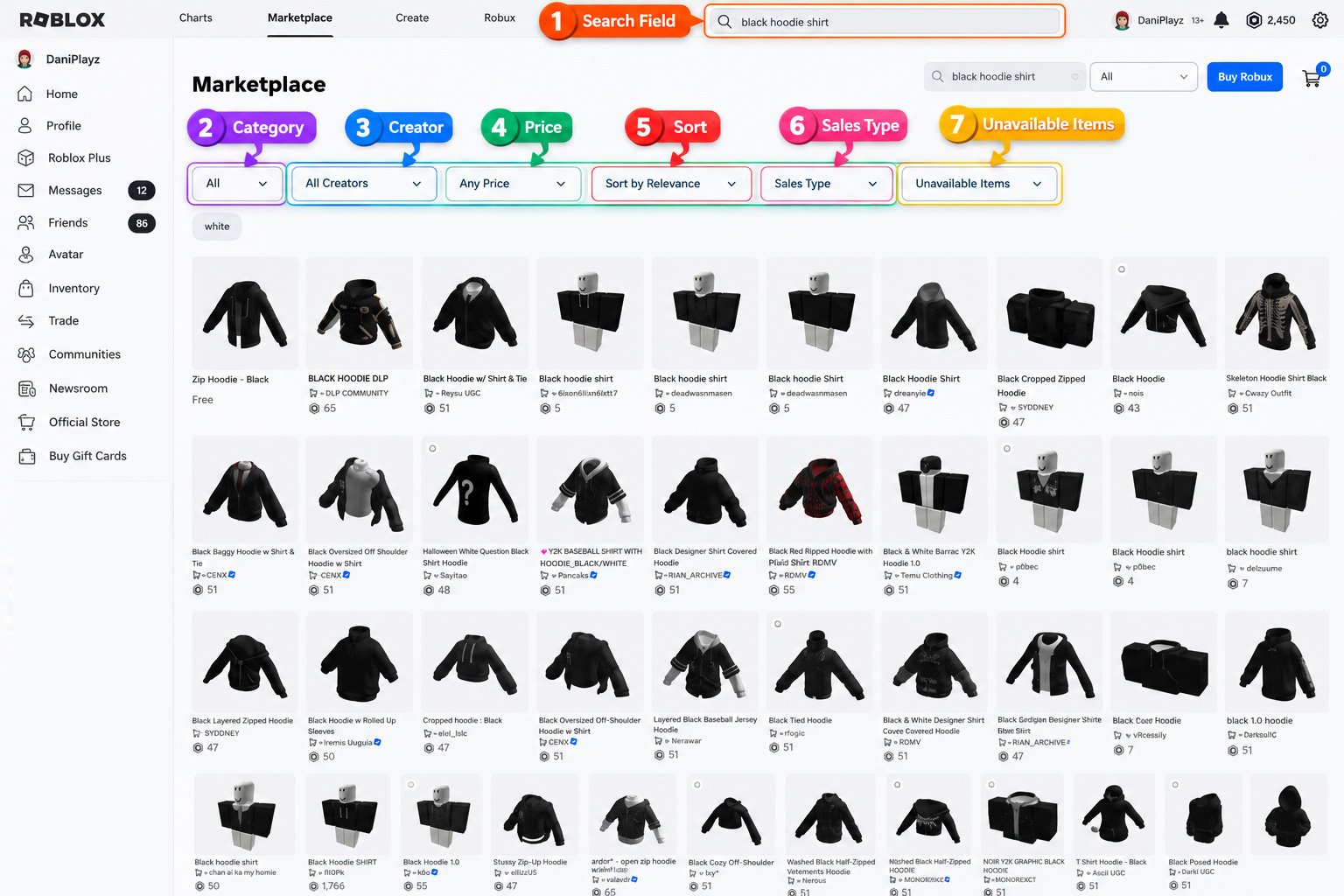
Follow these steps to search for an item:
1. Open the Marketplace
First, open the Roblox Marketplace on the website or in the Roblox mobile app. If you are using a phone, you can access it through the Marketplace option in the app’s navigation.
2. Find the Search Field
Once the Marketplace is open, look for the Search field. On some interfaces, it may be displayed prominently near the top of the Marketplace page.
3. Enter a Keyword or Item Name
Type a keyword that describes the item you are looking for. For example, you could search for “black hoodie,” “headphones,” “sword,” “hair,” or “sunglasses.”
Using a more specific keyword can make your results more useful. For example, searching for “black headphones” gives Roblox more information about what you want than searching for “black” alone. A specific search can help reduce unrelated results and make it easier to find the type of item you have in mind.
4. Review the Search Results
After entering your keyword, review the items displayed in the search results. You may see different items that match the same search term, so check the item’s thumbnail, name, and other visible information before choosing one.
5. Select an Item
When you find an item that looks interesting, select it to open its item details page. This page provides more information about the item and lets you check details such as its price and availability before deciding whether to purchase it.
How to Use Roblox Marketplace Categories
Roblox Marketplace categories help narrow your results based on the type of item you want to find. Instead of browsing every available item, select a relevant category to focus on a specific type.
Depending on the current interface, you may see categories or item types related to clothing, accessories, collectibles or Limited items, gear, and other available options.
For example, if you are looking for something to wear, choosing a clothing-related category can reduce unrelated results. You can also combine a category with a keyword search for more specific results.
How to Use Marketplace Filters
Instead of browsing a large list, you can adjust the available filters to find more relevant results.
- Price: Helps you find items within a specific Robux price range, which is useful when you have a spending limit.
- Creator: Lets you narrow results to items created by a particular creator.
- Sales Type: Helps filter items based on the type of sale currently available.
- Sort: Changes the order in which search results are displayed, making it easier to browse items according to the available sorting options.
- Unavailable Items: Can help you view items that are currently unavailable, if this option is shown in your Marketplace interface.
How to Open an Item’s Details Page
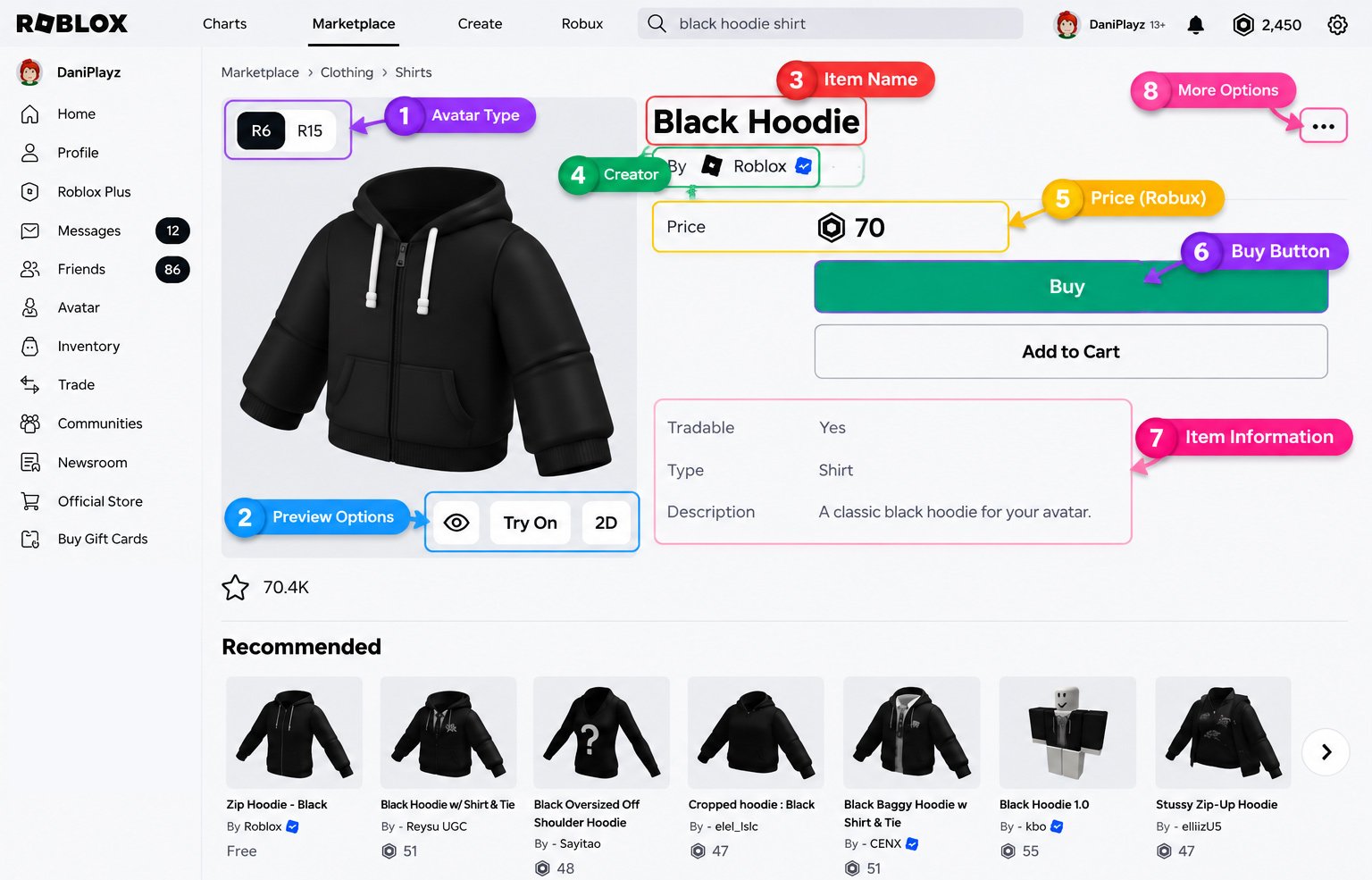
After finding an item in the Roblox Marketplace, select it to open its item details page. This page provides important information you should check before making a purchase.
Start by checking the item name and item type to make sure you have selected the right product. Read the description for additional information, then check the price and availability.
If the item is a Limited or Limited U, its status should also be visible where applicable. The page may also show a Buy button and a Try On or preview option if the feature is available.
Roblox Support explains that an item details page can provide information about the item, its price, and whether it can be purchased, traded, or resold.
Always check the item details before buying. This simple step can help prevent purchasing the wrong item.
How to Try On a Roblox Marketplace Item
Before buying an item, use the available Try On or preview feature to see how it looks on your avatar. This can help you check whether the item’s appearance and style match what you are looking for.
On supported items, select Try On on the item page. In the Roblox mobile app, you may also be able to tap the item to preview its appearance on your avatar.
Previewing an item before purchasing can reduce the chance of buying something that does not look the way you expected.
How to Buy an Item from the Roblox Marketplace
Once you have found an item you want, you can purchase it directly from its Marketplace details page.
- Find the item. Search for the item or browse through the available Marketplace categories and filters.
- Open the item details page. Select the item to view its information.
- Check the details. Confirm the item name, type, description, and price. If available, check its Limited or Limited U status as well.
- Make sure you have enough Robux. Check your balance before continuing with the purchase.
- Select Buy. If the item is available for purchase, select the purchase option shown on the item page.
- Review the confirmation screen. Check the item and Robux amount again before confirming.
- Confirm the purchase. Follow the confirmation options shown by Roblox to complete the transaction.
On mobile, Roblox’s current purchase flow may show the item, Buy, a confirmation screen, and options such as Buy Now or Continue Shopping. Button names and layouts can change, so follow the options displayed in your current Roblox interface.
What Should You Check Before Buying an Item?
Before confirming a Roblox Marketplace purchase, take a moment to review the item and transaction. A quick checklist can help you make sure everything is correct:
- Is this the item I actually want?
- Is the item type correct?
- Is the price correct?
- Is the item currently available?
- Does it look right on your avatar?
- Is it Limited or Limited U, if applicable?
- Do you have enough Robux?
- Are you comfortable with the purchase being final?
Roblox Support states that Marketplace purchases are final, and Roblox cannot issue a refund after a purchase has been confirmed.
What Does Limited or Limited U Mean?
You may see Limited or Limited U labels while browsing the Roblox Marketplace. These labels indicate that the item has limited availability.
- Limited: An item sold for a limited period. Once Roblox stops selling it, players may be able to resell their copies to other players, subject to Roblox’s rules.
- Limited U: An item sold until its limited supply runs out. Limited U items have a fixed number of copies, with each copy having a unique serial number.
If you want a more detailed explanation of how to purchase these items, see How to Buy Limited Items on Roblox.
For related guides, see How to Trade Items on Roblox or How to Sell Items on Roblox.
How to Find Items You Already Bought
After purchasing an item from the Roblox Marketplace, you can find it through your Inventory. Roblox Support explains that items purchased with Robux from the Marketplace can be accessed from your Inventory.
Open your Inventory and select the category that matches the item you purchased. Depending on the item, you may need to check categories such as hats, hair, accessories, animations, or packages.
What If the Buy Button Is Unavailable?
If the Buy button is unavailable or appears faded, the item may not currently be available for purchase. Other possible reasons include:
- The item is currently off sale.
- The item is unavailable.
- You do not have enough Robux to purchase it.
- The item’s availability has changed since you first found it.
- The Roblox Marketplace interface or item status has changed.
Check the item’s details page for its current price and availability before assuming there is a problem with your account.
Roblox Marketplace vs Creator Store
The Roblox Marketplace and Creator Store serve different purposes. The Marketplace is designed for avatar-related items that players can use for customization, such as clothing, accessories, and other supported avatar items.
The Creator Store, on the other hand, is intended for creators developing Roblox experiences. It provides assets such as models, plugins, audio, fonts, images, meshes, and videos.
These assets are not the same as avatar items and generally cannot be worn on an avatar like Marketplace clothing or gear.
Roblox Marketplace Tips for Finding Items Faster
A few simple habits can make browsing the Roblox Marketplace more efficient. Start with specific search terms rather than broad keywords, then use available category and price filters to narrow the results. If you are looking for items from a particular creator, check the Creator filter when available.
Finally, take a moment to review the purchase details on the confirmation screen instead of rushing through the transaction.
Frequently Asked Questions
Can you search for items on the Roblox Marketplace?
Yes. Use the Search field to enter an item name or keyword and browse the matching results.
Can you filter Roblox Marketplace items by price?
Yes. Use the available price filter to narrow items based on your preferred Robux range.
What does Limited mean on Roblox Marketplace?
Limited items have limited availability and may have different purchasing options from regular items.
Why can’t I buy an item on Roblox Marketplace?
The item may be off sale, unavailable, or otherwise not currently purchasable.
How do you buy an item from the Roblox Marketplace?
Open the item details page, check the item and price, select Buy, review the confirmation screen, and follow the options shown by Roblox to complete the purchase.
Where do you find items after buying them on Roblox?
Items purchased with Robux from the Marketplace can be found in your Roblox Inventory.
Is the Roblox Marketplace the same as the Creator Store?
No. Marketplace is mainly for avatar items, while Creator Store provides assets for Roblox creators.